Check deliveries and send one again
Find a delivery in the log, see exactly what was sent and what came back, understand automatic retries, send a delivery again with Redeliver, and export the log.
- Applies to
- Webhook Engine 2.2 and later
- Who can do this
- Platform owner, Administrator, Developer
- Permission
feature.webhook. log.list - Where
- Webhook Engine › Delivery Logs
On this page
Every attempt to send an event to a destination is a row in the delivery log: successful ones, failed ones and retries. Use it to confirm that a receiver got something, or to find out why it didn't.
Before you start
- You need List Log (
feature.) to open the log and View Log (webhook. log.list feature.) to open an entry.webhook. log.view - To send a delivery again you need Redeliver Webhook Delivery (
feature.). To export, Export Delivery Logs (webhook. log. redeliver feature.).webhook. log. export
Find a delivery
-
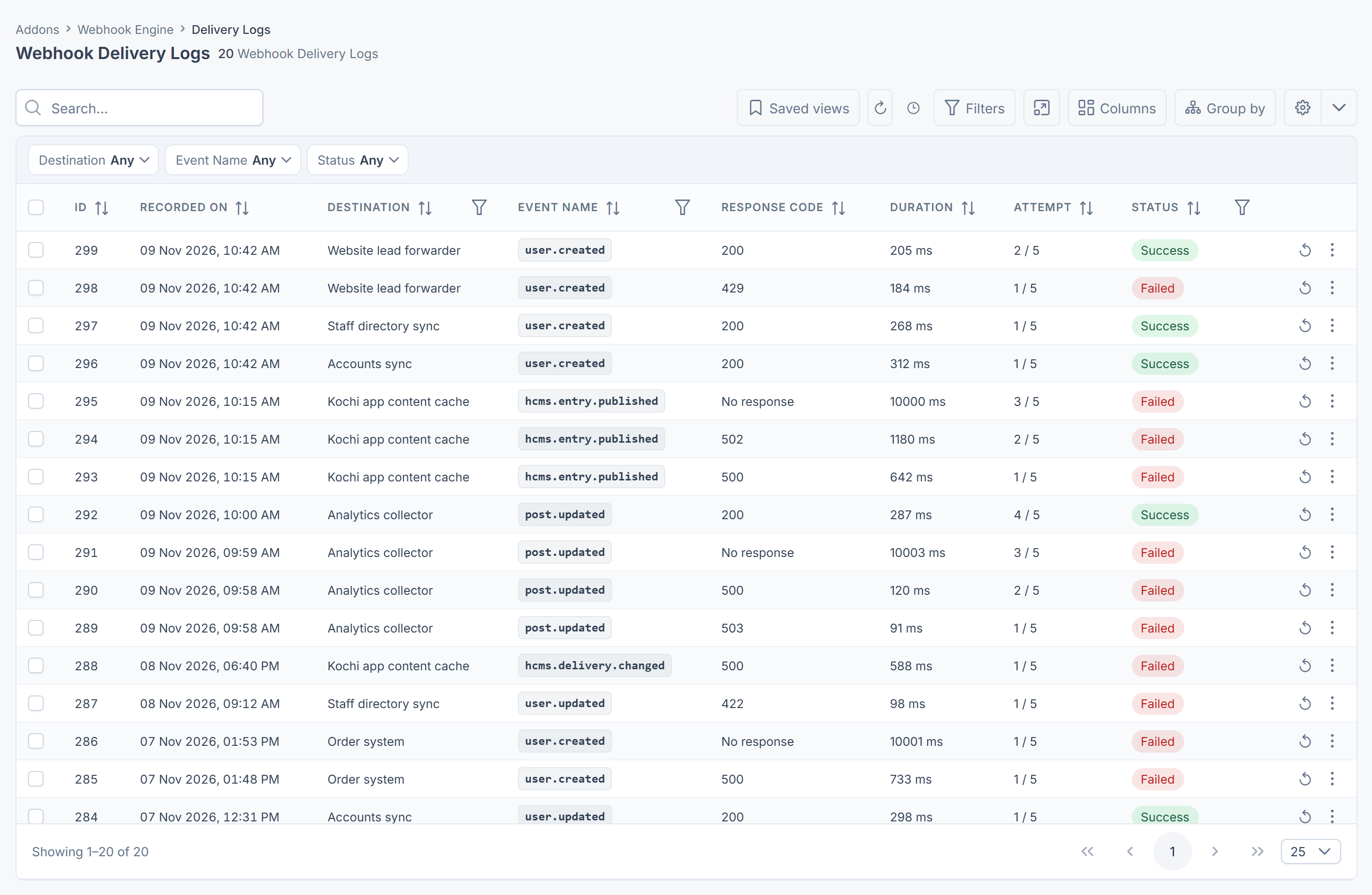
In the sidebar, open Webhook Engine › Delivery Logs. The newest attempts are at the top.
-
Narrow the list with the filters: Destination, Event Name or Status (Success or Failed). You can also search by event name. See Filter a list.
-
Select a row to open it.
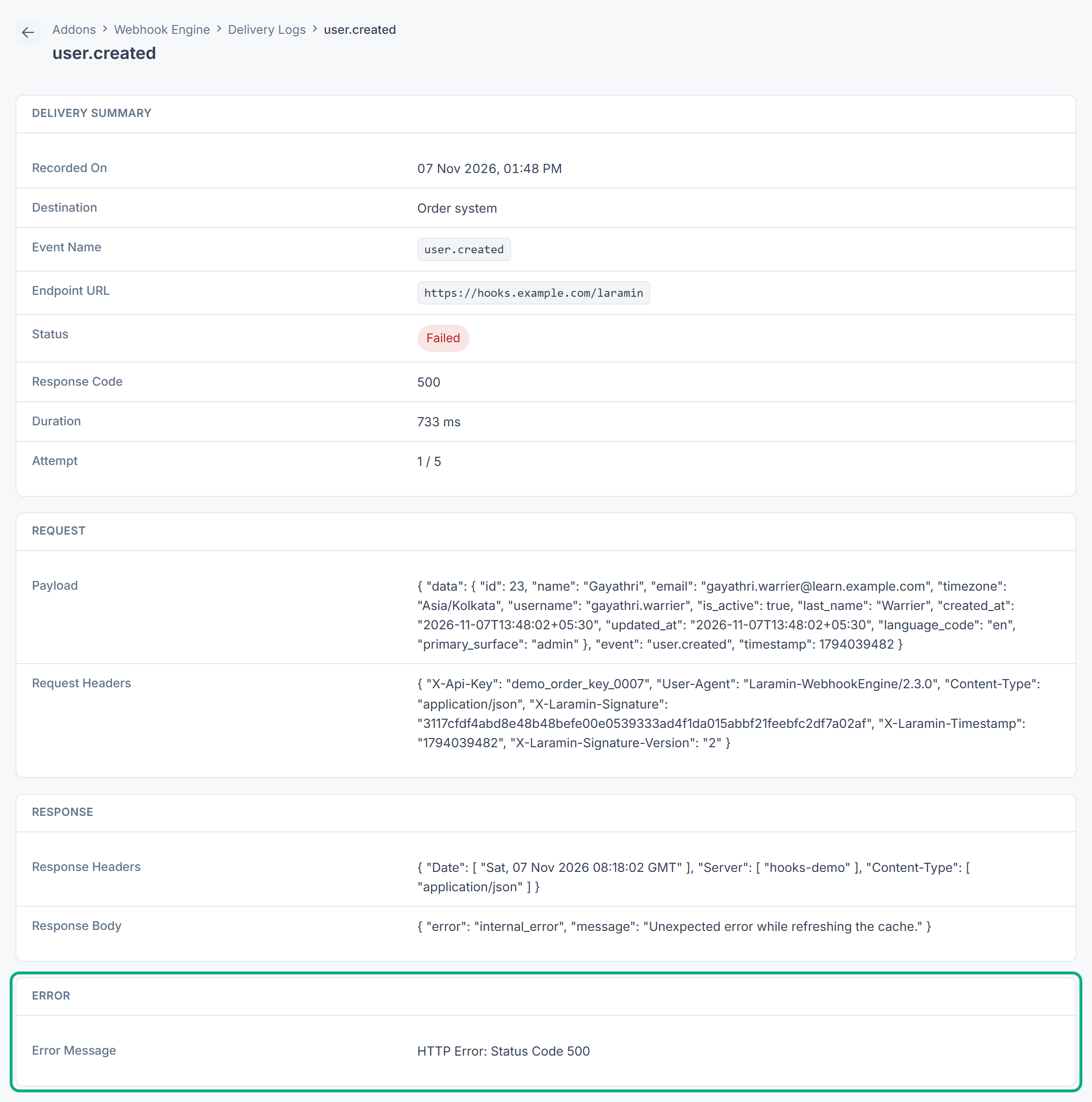
The entry has four panels:
| Panel | What's in it |
|---|---|
| Delivery Summary | When it was recorded, the destination, the event, the Endpoint URL, the status, the response code, how long it took and the attempt number. |
| Request | The Payload that was sent and the Request Headers, including the signature headers and your custom headers. |
| Response | The Response Headers and Response Body the receiver sent back. |
| Error | Why the attempt failed, such as HTTP Error: Status Code 500, or the connection error. |
If nothing is listed for an event you expected, no delivery was attempted. See Deliveries fail or a destination is suspended.
How automatic retries look in the log
A failed attempt is tried again automatically, up to 5 attempts in all. The waits between them are 5 seconds, 15 seconds, 1 minute and 5 minutes. Each attempt is its own row, with Attempt showing 1 / 5, 2 / 5 and so on.
- When an attempt succeeds, there are no more retries.
- When attempt
5 / 5fails, your Laramin gives up on that delivery. It isn't tried again unless you redeliver it. - If the destination is set to Inactive or Suspended, or deleted, while retries are waiting, the remaining retries are skipped and not logged.
Send a delivery again
Use Redeliver when the receiver missed a delivery, for example after it was down for longer than the retries lasted.
-
Find the delivery in the log. Any of its attempts will do.
-
Open the row's actions menu and select Redeliver. To send several, select their rows and choose Redeliver from the bulk actions.
-
Confirm Redeliver this payload to its destination?
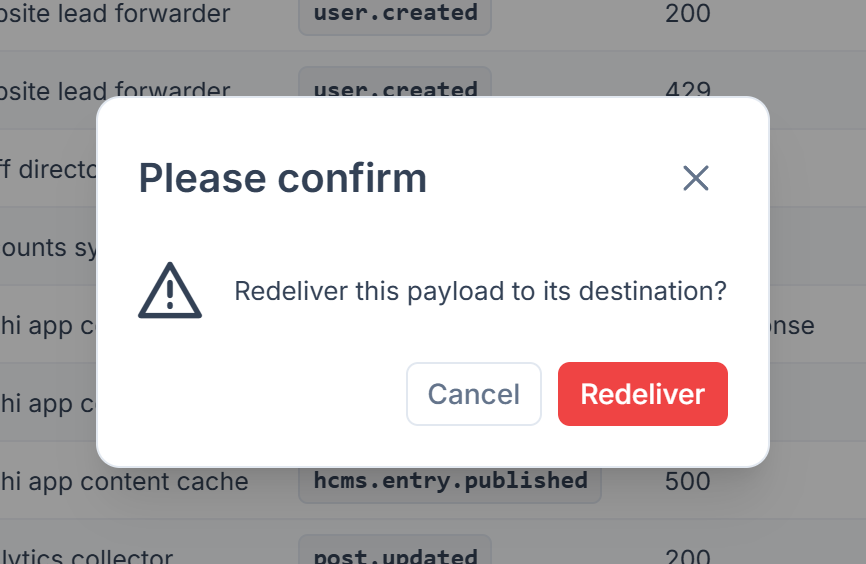
A new delivery is queued with the same event and payload, and it gets its own 5 attempts. It appears as new rows, starting again at 1 / 5.
- The payload carries the same content as before, including its original time, so a receiver that handles duplicates can recognize it. The signature headers are made again, with the destination's current secret and a new timestamp.
- Redeliver isn't offered for a delivery whose destination has been deleted. In a bulk selection, those rows are skipped and the rest are sent.
- A redelivery to a destination that's Inactive or Suspended is accepted, but nothing is sent and no row is added to the log. Set the destination to Active first.
Export the log
Select Export on the list to download the visible columns as a CSV file. Payloads, headers and response bodies aren't included. See Export a list to CSV.
Keeping the log tidy
Log entries can't be deleted one by one, and nothing removes old entries automatically. Deleting a destination forever deletes all of its entries. If the log grows too large, ask whoever manages your server.
Thanks. That helps us decide what to write next.
Thanks for telling us what was missing.
You already answered for this article today. Thanks.
We got a lot of answers from your network just now. Try again in a few minutes.
We couldn't send that. Check your connection and try again.
Links in this article
Printed from help.bsscn.com. The online article may have changed since.