You can't mark a property Under Offer, Sold or Rented
Place under offer, Release offer or Complete transaction is missing, the buyer's brief isn't offered, or Laramin refuses the change. Find the cause and what you can do.
- Applies to
- Property CRM 5.1 and later
- Who can do this
- Team member, Administrator
- Permission
feature.pcrm. property. close_transaction - Where
- Property CRM › Properties
On this page
Symptom
One of these, on a property's page:
- Place under offer, Release offer or Complete transaction isn't there.
- The Buyer brief list says No eligible brief, with A brief must belong to this business, be open, and want the same thing this listing offers.
- Laramin refuses with a message such as That listing is not available. or That requirement is not active.
- You tried to set Status to Under Offer, Sold or Rented in the form, and saving was refused.

How these statuses work
Under Offer, Sold and Rented come only from the three actions on the property's page. Each one works against a buyer's requirement, which the actions call a brief, in the same business.
| Action | The property must be | The requirement must be | Afterwards |
|---|---|---|---|
| Place under offer | Available | Active | The property is Under Offer, reserved for that requirement. The requirement goes On Hold. |
| Complete transaction | Available or Under Offer | Active or On Hold | The property is Sold for a buying requirement, or Rented for a rent or lease requirement. The requirement is Fulfilled. |
| Release offer | Under Offer | The property is Available again. The requirement goes back to Active if it's still On Hold. |
You can complete a sale without placing the property under offer first.
Check these, in order
1. The buyer has no requirement that fits
The Buyer brief list offers only requirements in this business whose Purpose matches the property's:
| Property Purpose | Requirement Purpose |
|---|---|
| Sale | Buying |
| Rent | Rent |
| Lease | Lease |
| Joint Venture | Joint Venture |
For Place under offer it lists only Active requirements. For Complete transaction, Active and On Hold ones. If the requirement doesn't fit, Laramin refuses with one of these:
- That requirement is not active.
- That requirement cannot be closed from its current status.
- That requirement and that listing are not for the same kind of transaction.
Fix: record the buyer's requirement, with the purpose that matches the property, then try again. See Record a client requirement. If the buyer came in as an inquiry, convert it and create the requirement in the same step. See Turn an inquiry into a client. If their requirement is On Hold or Closed and they're buying again, set its Status back to Active.
2. The property's status doesn't allow it
Each action appears only when the property's status allows it, as in the table above. A property in the trash shows none of them. If the status changed while you had the page open, Laramin refuses with one of these:
- That listing is not available.
- That listing is not under offer.
- That listing cannot be closed from its current status.
Fix: reload the page to see the current status. A Withdrawn property must go back on the market first: edit it, set Status to Available, and select Save.
3. The property is reserved for another buyer
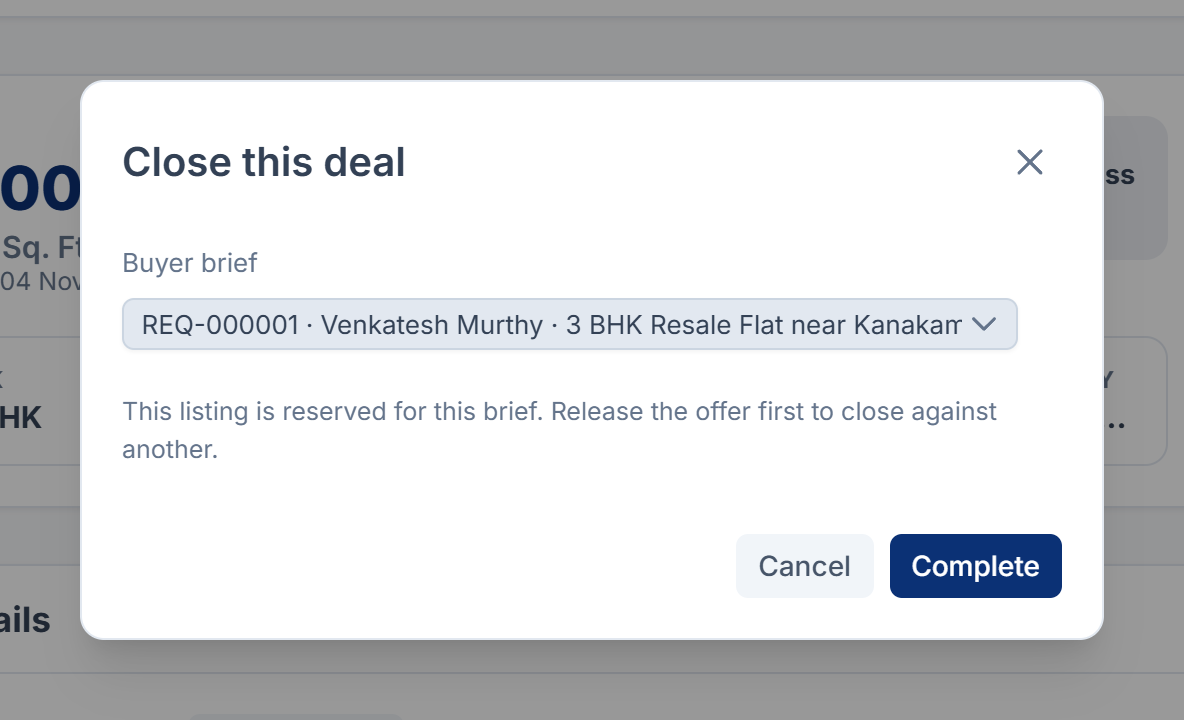
A property Under Offer can only be completed against the requirement it was reserved for. The Buyer brief list then shows only that requirement, with This listing is reserved for this brief. Release the offer first to close against another. Choosing another gives That listing is under offer to a different requirement.
Fix: select Release offer, then Complete transaction with the other buyer's requirement.
4. It's a joint venture
A Joint Venture requirement has no closing status, so Complete transaction refuses it with This kind of requirement has no closing status. You can still place a joint-venture property under offer.
Fix: there's no completion on screen for a joint venture. When the deal is done, select Release offer if the property is under offer, then edit the property and set its Status to Withdrawn. Set the requirement's Status to Closed.
5. You tried to set the status in the form
Saving refuses these changes:
| Message | What happened |
|---|---|
| That status is set by the under-offer or completion action, not by editing. | You chose Under Offer, Sold or Rented in Status. |
| Release this listing from its current status before changing it. | Someone marked the property Under Offer, Sold or Rented while you had the form open. Once a property has one of these statuses, Status is read-only in the form. |
Fix: use the actions on the property's page. If you had the form open, open the property again to see its status now. A property Under Offer can be released with Release offer.
A Sold or Rented property can't be released or put back on the market. If one was marked by mistake, raise a ticket. Don't add a second copy of the listing without telling your team.
6. Your role doesn't allow it
| Action | Permission | Roles that have it |
|---|---|---|
| Place under offer, Release offer | feature. | Property CRM Admin, Property CRM Manager, Property CRM Agent |
| Complete transaction | feature. | Property CRM Admin, Property CRM Manager |
Property CRM Telecaller and Property CRM Viewer have neither, so they don't see the actions. Fix: ask an administrator for a role that includes the action. See Give people a Property CRM role.
7. You're in All Workspaces, or another business
The actions change records, so you must be working in the property's business. In All Workspaces, Laramin says Choose a business before making this change. Fix: switch to the property's business. See Someone can't see or change Property CRM records.
Still not working?
Raise a ticket from Support Center in your Laramin app. Include this page's link, the property's and the requirement's codes, their statuses and purposes, and the exact message.
Thanks. That helps us decide what to write next.
Thanks for telling us what was missing.
You already answered for this article today. Thanks.
We got a lot of answers from your network just now. Try again in a few minutes.
We couldn't send that. Check your connection and try again.
Links in this article
Printed from help.bsscn.com. The online article may have changed since.