Record a client requirement
Write down what a buyer or tenant is looking for: purpose, property type, size, budget and location. Property CRM then lists the properties that match.
- Applies to
- Property CRM 5.0 and later
- Who can do this
- Team member
- Permission
feature.pcrm. requirement. create - Where
- Property CRM › Requirements
On this page
Before you start
- You need
feature.. Property CRM Admin, Manager and Agent have it.pcrm. requirement. create - Work in your business's workspace, not All Workspaces. See Switch workspace.
- The buyer must be a client with the Buyer role. If they aren't in Laramin yet, you can create them from the form.
- If the requirement came from an inquiry, convert the inquiry instead: Laramin can create the requirement from it. See Work through new inquiries.
Steps
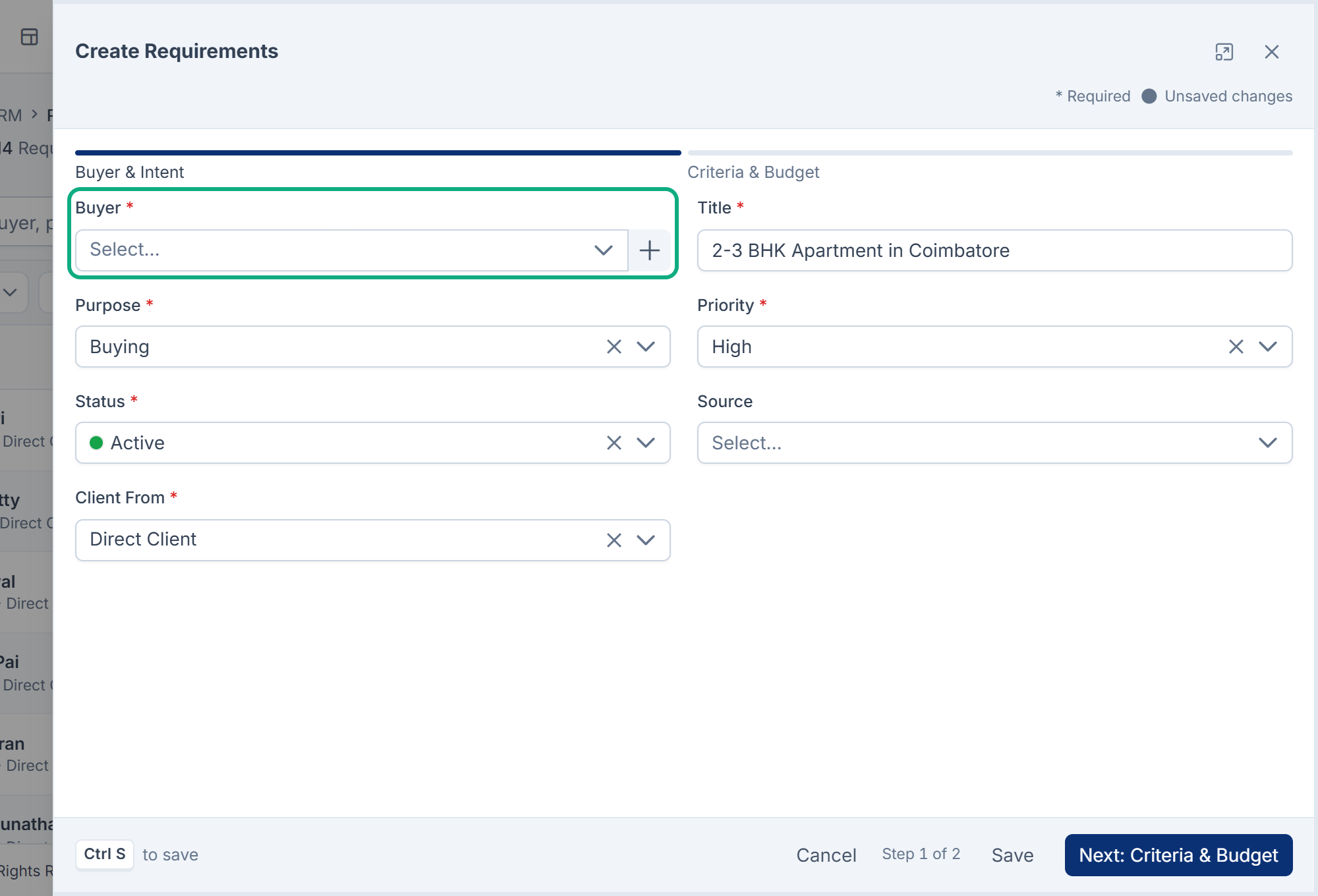
The form has two steps. The required fields on the first step are enough to save; select Save from either step.
Buyer & Intent
-
In the Property CRM sidebar, open Requirements. In the Platform Administration sidebar, it's Property CRM › Requirements.
-
Select Create.
-
In Buyer, choose the client. If they're new, select New buyer, enter their Full name and Mobile, and select Create.
-
Enter a Title, for example "2 BHK to rent near the station".
-
Choose the Purpose: Buying, Rent, Lease or Joint Venture.
-
Set the Priority: Low, Medium or High. It starts at Medium.
-
Leave Status at Active. Only active requirements are matched.
-
Optional: choose the Source, and check Client From, which is Direct Client unless the buyer came through someone else.
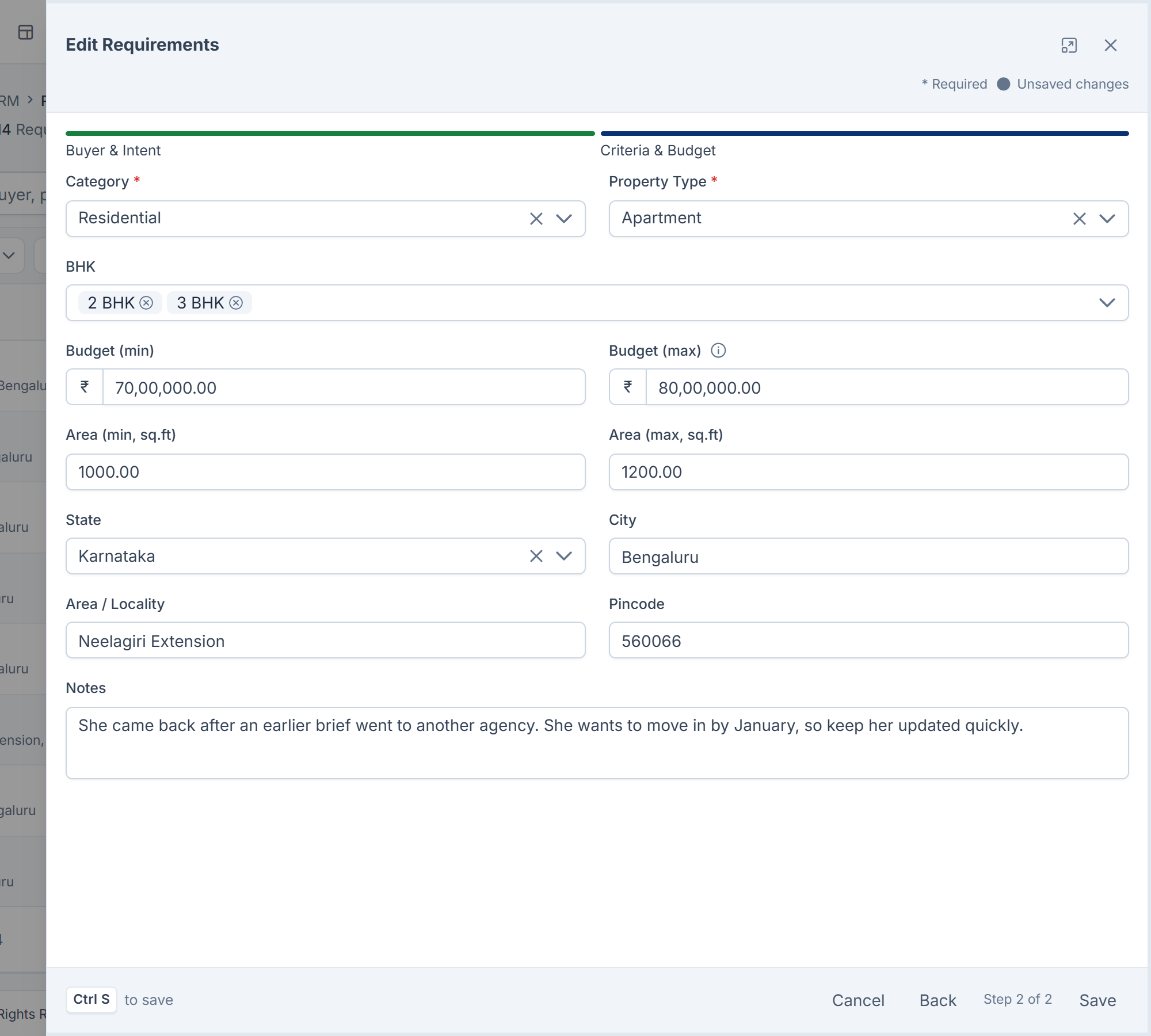
Criteria & Budget
-
Choose the Category, then the Property Type. Both are required.
-
For homes, tick each BHK the buyer would accept.
-
Enter Budget (min) and Budget (max). The maximum can't be lower than the minimum.
-
Enter Area (min, sq.ft) and Area (max, sq.ft) if size matters.
-
Enter where they want to be: State, City, Area / Locality and Pincode.
-
Add any Notes, such as a preferred floor.
-
Select Save.
What happens next
The requirement gets a code, such as REQ-000031. Open it to see its Matches: the available properties with the same purpose and category, best first.
| Match | Score |
|---|---|
| Strong | 75 or more out of 100 |
| Good | 50 to 74 |
| Fair | Below 50 |
The score weighs budget, city, property type, BHK, area and locality. The chips on each match say what fits, for example Within budget or Locality. Select Find More Matches to recalculate the list and jump to it, for example after you add new properties.
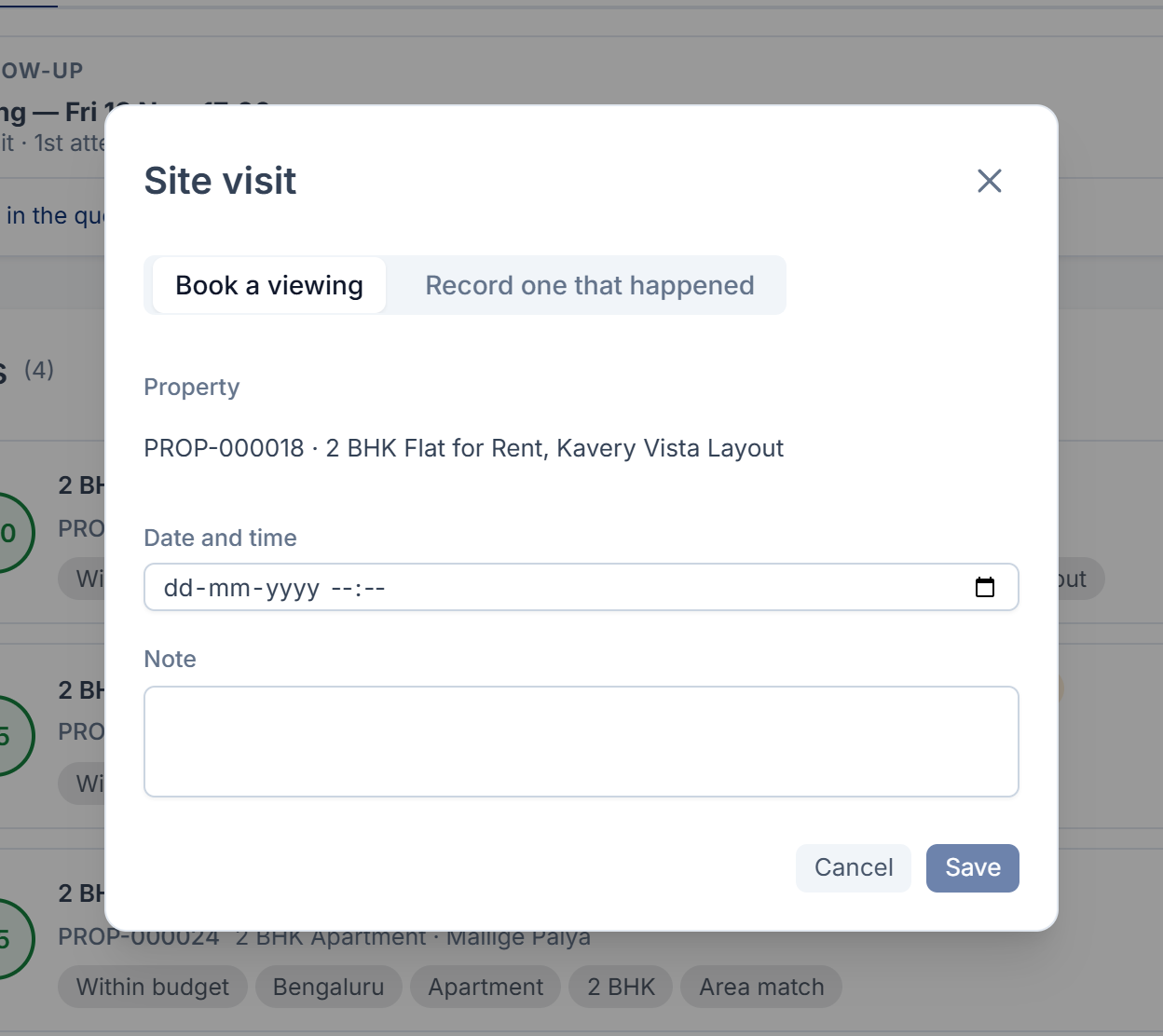
From a match, select Schedule visit to book a viewing. This needs the Activities add-on and feature..
An active requirement that hasn't changed for a while is flagged in the Requirements list. The number of days is Requirement Stale After (days) in Property CRM settings.
Thanks. That helps us decide what to write next.
Thanks for telling us what was missing.
You already answered for this article today. Thanks.
We got a lot of answers from your network just now. Try again in a few minutes.
We couldn't send that. Check your connection and try again.
Links in this article
Printed from help.bsscn.com. The online article may have changed since.