Turn an inquiry into a client
Convert a qualified lead: Laramin makes them a client with the Buyer role and can create their requirement from the inquiry, so matching starts straight away.
- Applies to
- Property CRM 5.0 and later
- Who can do this
- Team member
- Permission
feature.pcrm. inquiry. convert - Where
- Property CRM › Inquiries
On this page
Converting is the last step of working an inquiry. For finding, assigning and contacting new inquiries first, see Work through new inquiries.
Before you start
- You need
feature.. Property CRM Admin, Manager and Agent have it.pcrm. inquiry. convert - Work in your business's workspace, not All Workspaces.
- To create a requirement too, the inquiry needs a Property Type on its Brief step. Fill in Purpose, Budget, Preferred Area / Locality and City as well, because they carry over.
Steps
-
In the Property CRM sidebar, open Inquiries.
-
Open the inquiry's row actions menu and select Convert.
-
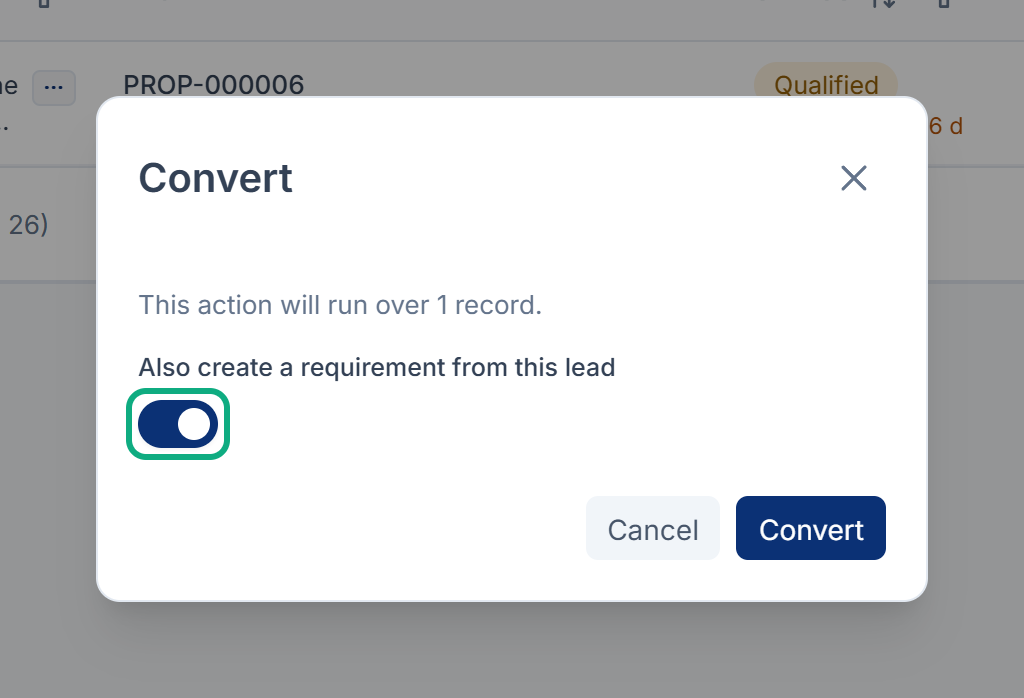
Leave Also create a requirement from this lead switched on, or switch it off to convert without one.
-
Select Convert to confirm.
Laramin says Lead converted — a client record is now in the CRM. Convert is offered only once per inquiry.
What happens next
The client
Laramin looks for the person by the inquiry's mobile number:
- Already in your Laramin: the existing person is used, and gets the Buyer role if they didn't have it. If they were already your client, they keep their client number. Otherwise they become your client with a new one.
- Not found: Laramin creates them, as a client of your business with the Buyer role and a new client number.
See Deal roles for what the Buyer role does.
The requirement
If you left the switch on, Laramin creates a requirement from the brief:
| Requirement field | Filled from |
|---|---|
| Buyer | The client |
| Title | The inquiry's name and code, for example "Asha Menon — INQ-000057" |
| Purpose | The inquiry's purpose: Sale becomes Buying, the others stay the same. Buying if the inquiry had none. |
| Category and Property Type | The inquiry's property type, and the category it belongs to |
| Budget (max) | Budget |
| City and Area / Locality | City and Preferred Area / Locality |
| Priority and Status | Medium and Active |
| Assigned agent | The inquiry's Assigned To, if that person still works in this business |
The inquiry's Conversion card shows the Converted Client, the code of the Converted Requirement, and when it happened. To work the requirement:
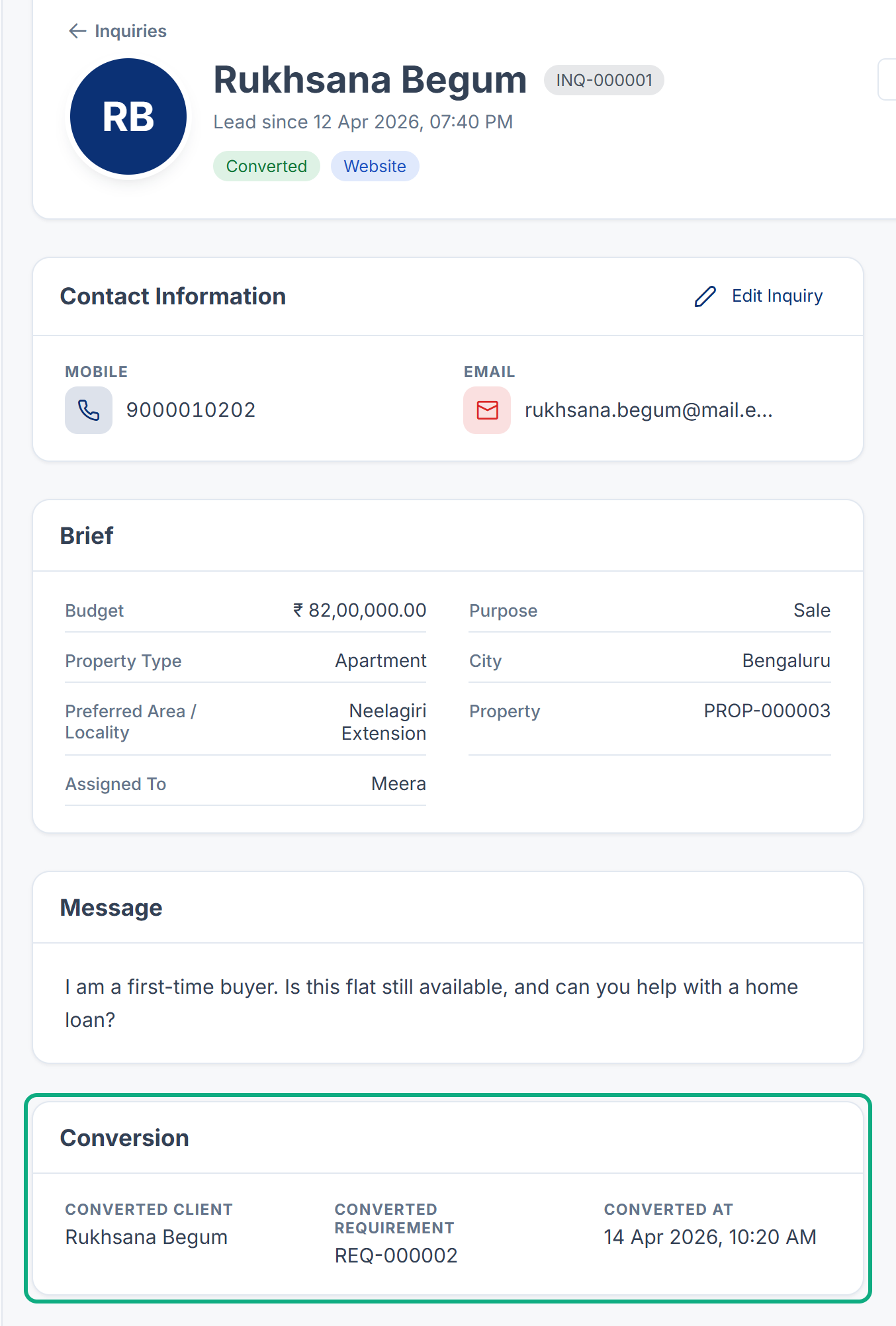
- In Requirements, search for that code and open the requirement.
- Select Edit Requirement and add what the brief didn't have, such as BHK, Budget (min), the area range or the State. The more it says, the better the matches. See How matching works.
- Check its Matches, and book a viewing with Schedule visit.
The inquiry and the alerts
- The inquiry's Status becomes Converted. It can't be changed back: Laramin says A converted inquiry cannot be moved back.
- If the inquiry was never marked contacted, its first-contacted date is filled in now.
- The inquiry's agent is told it was converted. If nobody was assigned, the people in Lead Alert Recipients are told instead.
- If Send client welcome message is on in Property CRM settings, the new client gets an automatic welcome.
If it doesn't convert
| Laramin says | What to do |
|---|---|
| This lead has no property type, so no requirement can be created from it. … | Select Edit Inquiry, fill in Property Type on the Brief step, and convert again. Or switch off Also create a requirement from this lead. |
| This lead has already been converted. | Someone converted it already. Open its Conversion card. | | Choose a business before making this change. | You're in All Workspaces. Switch to the inquiry's business. See Switch workspace. | | The directory did not create a party for this inquiry, so it was not converted. | Laramin's shared directory, from the Organization add-on, didn't accept the person. Nothing was changed. Ask your administrator to check that the Organization add-on is turned on. |
Thanks. That helps us decide what to write next.
Thanks for telling us what was missing.
You already answered for this article today. Thanks.
We got a lot of answers from your network just now. Try again in a few minutes.
We couldn't send that. Check your connection and try again.
Links in this article
Printed from help.bsscn.com. The online article may have changed since.