Inquiries from your website
When your business's website sends its inquiry form to Property CRM, each form becomes a new, unassigned inquiry. Here's what arrives, which business it lands in, who's told, and how Laramin keeps out repeats and spam.
- Applies to
- Property CRM 5.0 and later
- Who can do this
- Administrator, Team member
On this page
In short
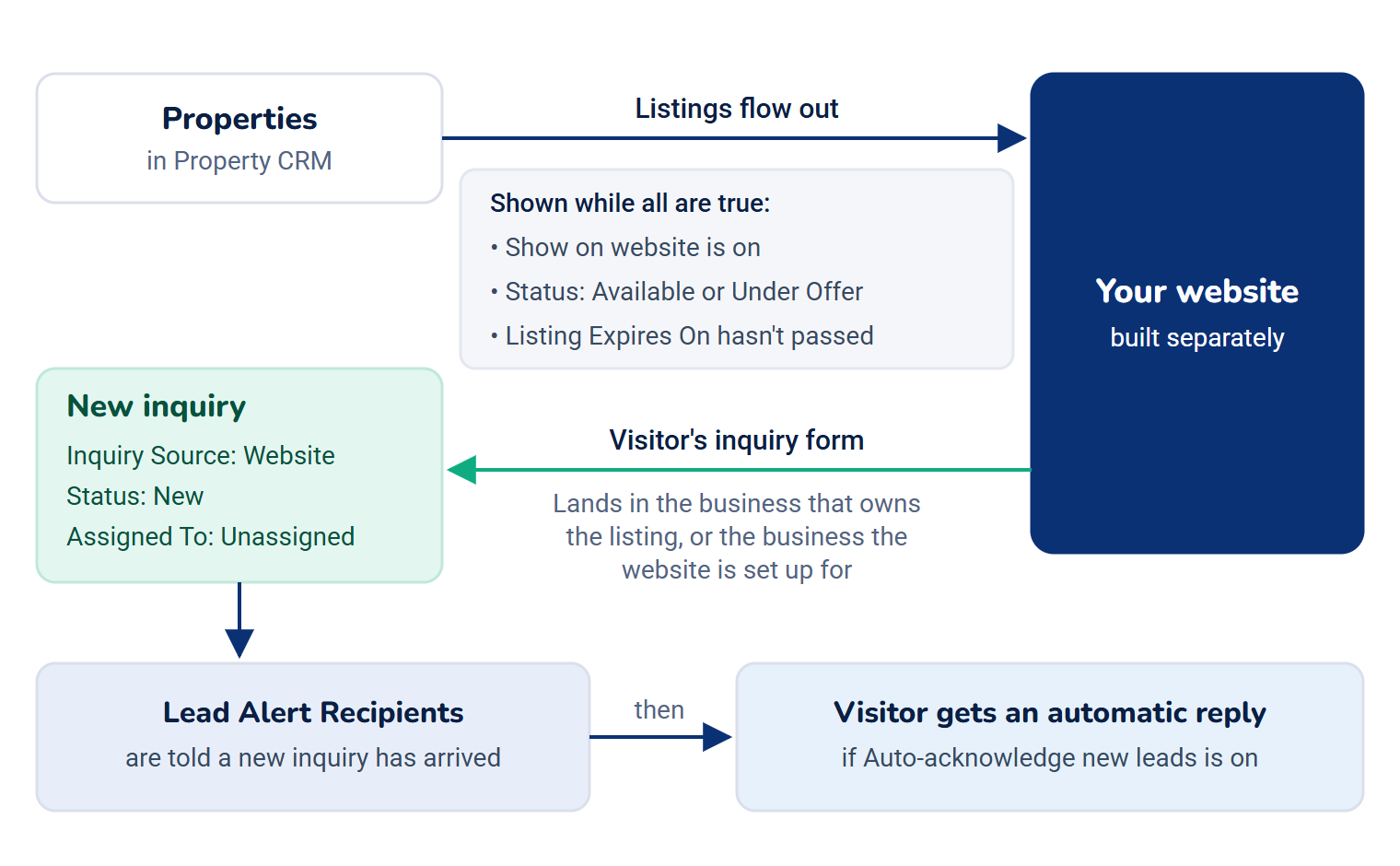
Property CRM can feed a website: it gives the site your listings, and takes back the inquiry form a visitor sends. Each form arrives in Property CRM as an inquiry with Inquiry Source set to Website, Status New and nobody assigned, ready for your team to pick up. The website itself is built separately. Property CRM only provides what it reads and writes.
How it works
What the website shows
A property appears on your website while all of these are true:
- Show on website is on. It's on for a new property.
- Its Status is Available or Under Offer.
- Its Listing Expires On date is empty or hasn't passed.
The website gets the listing's details, its featured image, and the gallery's photos, videos and links. It never gets gallery documents. The street address and the map pin are shared with the website too, so the site can show where the property is. Only the listing's own page gets them, never the list of listings.
Each time the website reports that someone viewed a listing, the property's Views count goes up. The dashboard shows it on Most enquired properties.
What a visitor sends
| On the form | In the inquiry |
|---|---|
| Name and mobile number, both required | Name, Mobile |
| The listing they were looking at, if they sent the form from a listing's page | Property |
| Purpose, property type, budget, preferred area and city, if the form asks | Purpose, Property Type, Budget, Preferred Area / Locality, City |
| Their message | Message |
Laramin checks the mobile number the same way as on its own forms. A listing named on the form must be one the website is currently allowed to show. If the form has a separate tick for marketing messages, Laramin stores the visitor's choice, but no screen or export shows it, so ask them before you add them to any marketing.
Laramin answers the website with Thank you — your inquiry has been received. The website decides what the visitor sees.
Which business it lands in
Every inquiry belongs to one workspace. A form sent from a listing's page lands in the business that owns the listing. Otherwise it lands in the business the website is set up for. If your Laramin runs only one business, everything lands there. If Laramin can't tell which business a form is for, it refuses the form rather than guess.
What happens when it arrives
- The inquiry gets a code, such as
INQ-000057, with Status New and Assigned To Unassigned. - Everyone in Lead Alert Recipients is told that a new inquiry has arrived.
- If Auto-acknowledge new leads is on, the visitor gets an automatic reply saying their inquiry was received.
- The Inquiries list starts counting how long it has waited. After the Lead Response Window (hours), it's flagged Never contacted.
Both settings are in Property CRM settings.
On the Timeline, the inquiry shows as received via Website, because no one on your team logged it. On the dashboard, it counts in New inquiries, and under Website in Where inquiries come from.
Repeats and spam
- Repeats: if the same mobile number sends the same message about the same listing, or the same general message, to the same business within 10 minutes, Laramin keeps the first inquiry and doesn't create another. A double-click or a slow connection therefore makes one lead. The same person writing again later makes a new inquiry.
- Spam: Laramin turns away forms that look automated, for example one the website reports was filled in under 3 seconds, and limits how many forms one network address can send.
How it relates to
- Working the lead: a website inquiry is handled like any other. See Work through new inquiries.
- Listings: what you enter on a property is what the website shows. See Add a property.
Next steps
Thanks. That helps us decide what to write next.
Thanks for telling us what was missing.
You already answered for this article today. Thanks.
We got a lot of answers from your network just now. Try again in a few minutes.
We couldn't send that. Check your connection and try again.
Links in this article
Printed from help.bsscn.com. The online article may have changed since.