Show content on chosen channels only
Add delivery channels such as Web, Android, iOS and Kiosk, show an entry on some of them only, and understand what an application that names no channel receives.
- Applies to
- Headless CMS 1.0 and later
- Who can do this
- Administrator, Team member
- Permission
feature.hcms. channel. create - Where
- Headless CMS › Delivery › Channels
On this page
Before you start
- Channels are optional. Without any, every published entry goes to every application that may read the space.
- Adding channels needs Create on delivery channels (
feature.). Choosing an entry's channels needs only permission to edit the entry.hcms. channel. create - A channel narrows which entries an application receives. It never decides who may read a space. That's the space's Who may read and API access.
Steps
1. Add the channels (administrators)
-
Open Headless CMS › Delivery › Channels.
-
On an empty list, select Add these 4 to add the starter channels Web, Android, iOS and Kiosk. A key that's already used is skipped. Or select Add one myself.
-
To add another later, select Add channel, then fill in:
- Name: what editors see, for example
Digital signage. - Key: what applications send, for example
signage. Lowercase letters, numbers and underscores, starting with a letter, up to 32 characters. - Icon and Description: optional.
- Active: leave on so editors can choose it and applications can ask for it.
- Name: what editors see, for example
-
Select Save.
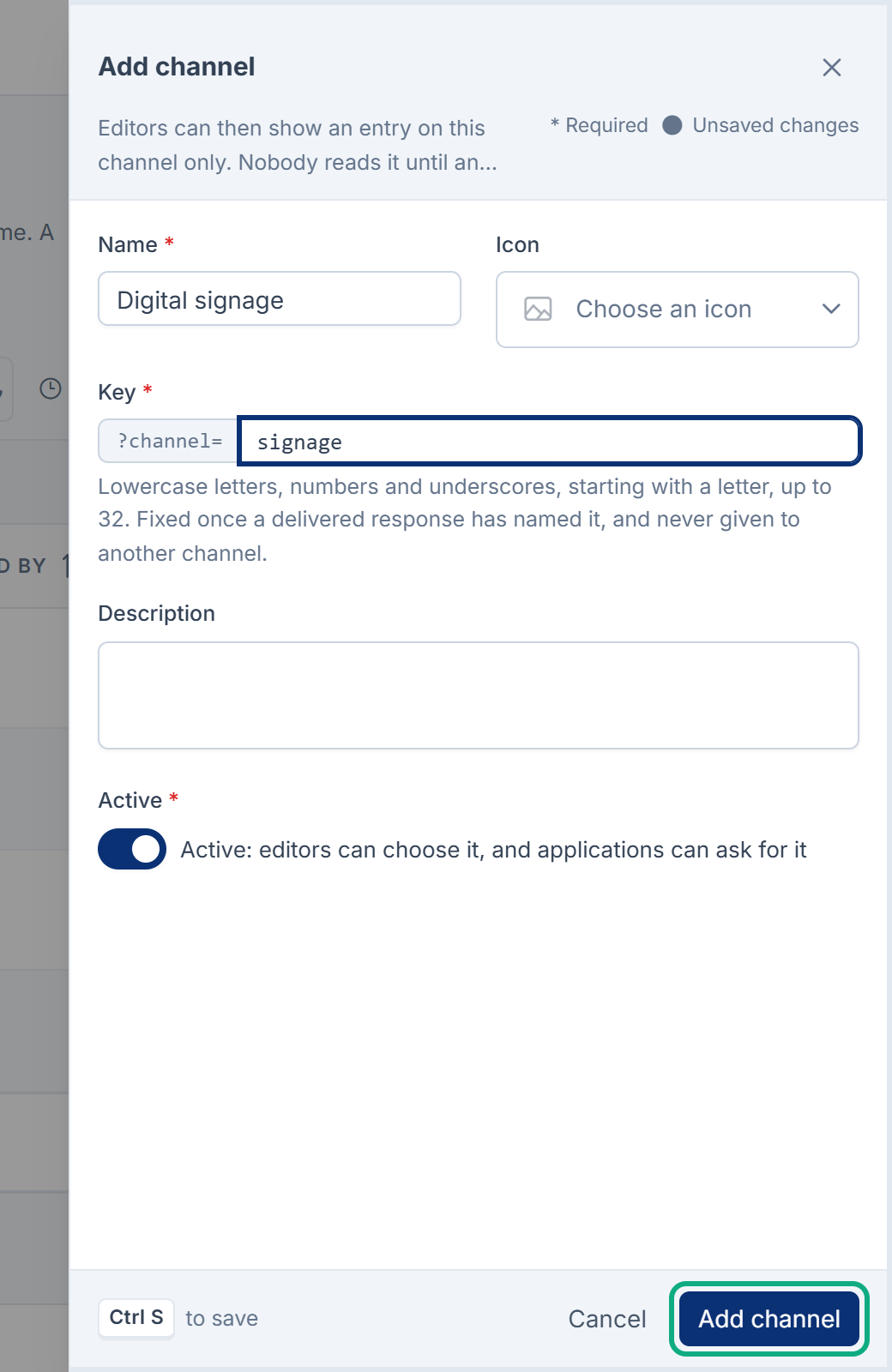
You see, for example, Digital signage added. Applications name it with ?channel=signage.
Careful: A channel's key is fixed once a delivered response has named it, because applications send it. A key is never given to another channel, even after the channel is removed for good.
2. Show an entry on some channels only (editors)
- Open the entry in Headless CMS › Content.
- Under Shown on, choose Only on chosen channels.
- Tick the channels, for example Kiosk. An entry can be shown on up to 20 channels.
- Select Save draft, then publish.
The channels are shared by every language, and publishing any language publishes them. Until then, applications keep receiving the entry on the channels it was last published with.
A Collection's list shows What applications receive, by delivery channel: with how many entries each channel gets, and how many go to applications that name no channel.
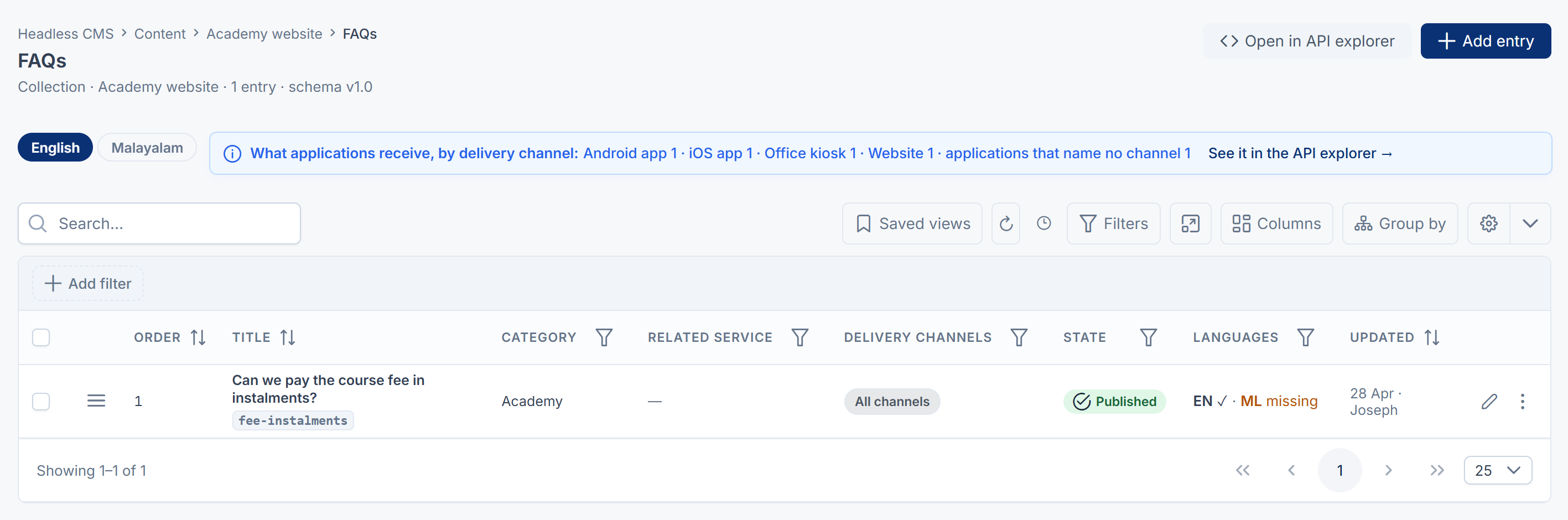
What each application receives
The channel used for a request is, in order:
- The channel the request names, for example
?channel=kiosk. - Otherwise, the application's Default channel from API access. This applies only to an application that sends its key.
- Otherwise, no channel. Such a request receives only the entries shown on All channels, so a Kiosk-only entry never reaches a caller that didn't ask for Kiosk.
An administrator can make the third case stricter: set When a request names no delivery channel to Refuse the request in Headless CMS settings, or Requests that name no channel on one space's Settings tab. Applications must then name a channel, or have a default one.
Deactivate or remove a channel
On the channel's row:
- Deactivate: asks first. It lists the entries shown on that channel only, which are then delivered nowhere, and the applications that read it by default, which fall back to the space's rule for requests that name no channel. A request that names it is refused with a 422 error, This query is not supported. The dialog promises the error "Unknown or inactive channel", but in Headless CMS 1.0.0 the API sends the general 422 message, which doesn't name the channel. The API explorer shows which parameter was refused. Entries keep the channel in their settings, and editors can't add it to an entry until it's active again. Undo is offered.
- Move to trash: only once no entry is shown on it and no application reads it by default. Change those first, or deactivate it instead. A restored channel comes back Inactive.
- Remove for good: only while no entry or grant, in the trash or not, still uses it. Its key stays reserved.
What happens next
Tell your developers each channel's key, so their applications send it with ?channel=, or set it as the application's default channel. See Give an application access to a content space and Delivery API: addresses, parameters and responses.
Thanks. That helps us decide what to write next.
Thanks for telling us what was missing.
You already answered for this article today. Thanks.
We got a lot of answers from your network just now. Try again in a few minutes.
We couldn't send that. Check your connection and try again.
Links in this article
Printed from help.bsscn.com. The online article may have changed since.