Write and publish content
Fill in a Single or add an entry to a Collection, save it as a draft, publish it, and later unpublish it, roll it back to an earlier version, reorder it or move it to the trash.
- Applies to
- Headless CMS 1.0 and later
- Who can do this
- Team member, Administrator
- Permission
feature.hcms. entry.edit - Where
- Headless CMS › Content
On this page
Before you start
- To write and save drafts you need the Content Editor role, or Edit on content entries (
feature.). To publish you need the Content Publisher role, or Publish (hcms. entry.edit feature.). Some people may edit or publish only the entries they created.hcms. entry. publish - The schema must be assigned to your content space. If you can't find it, ask your administrator. See Set up a content space and deliver your first content.
Steps
1. Open the content
-
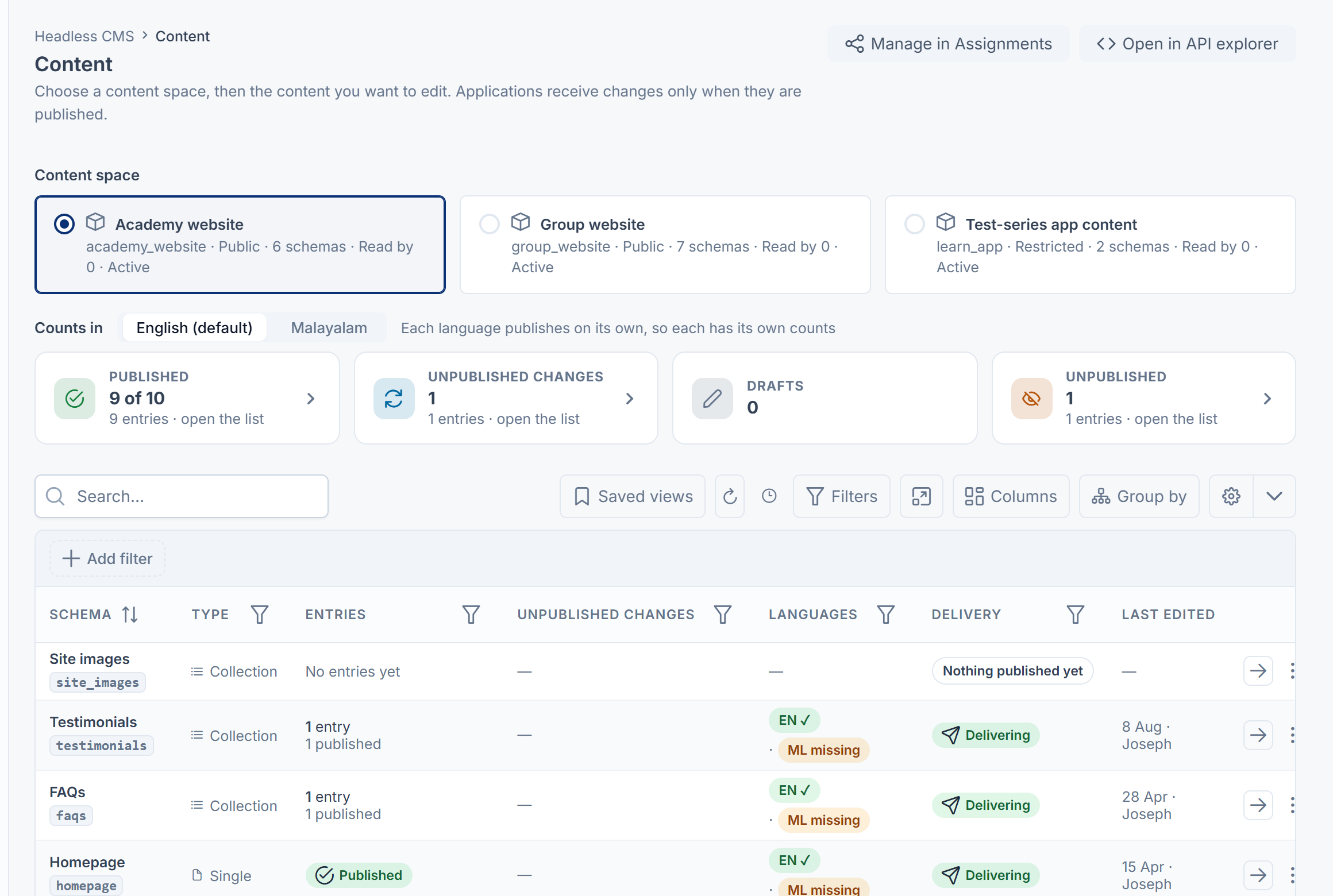
Open Headless CMS › Content.
-
In Content space, choose the space, for example your company website.
The page shows counts for the space (Published, Drafts, Unpublished, Unpublished changes) and one row per schema.
-
Select Open on the schema you want:
- A Single, such as a site header, opens its one record straight away.
- A Collection, such as FAQs, opens its list. Select Add entry to start a new one, or select a row to open it.
An entry from a list opens in a side panel. Select Open full page for more room.
2. Fill it in
-
Fill in the fields. Each field's help text says what it's for. Fields marked Required to publish can stay empty in a draft, but must be filled in before you publish.
-
If the schema gives entries a web address, check Address. It follows the title until you type your own, for example
opening-hours. -
Under Shown on, leave All channels, or choose Only on chosen channels to show the entry on some channels only. See Show content on chosen channels only.
-
Select Save draft, or press Ctrl+S (Cmd+S on a Mac).
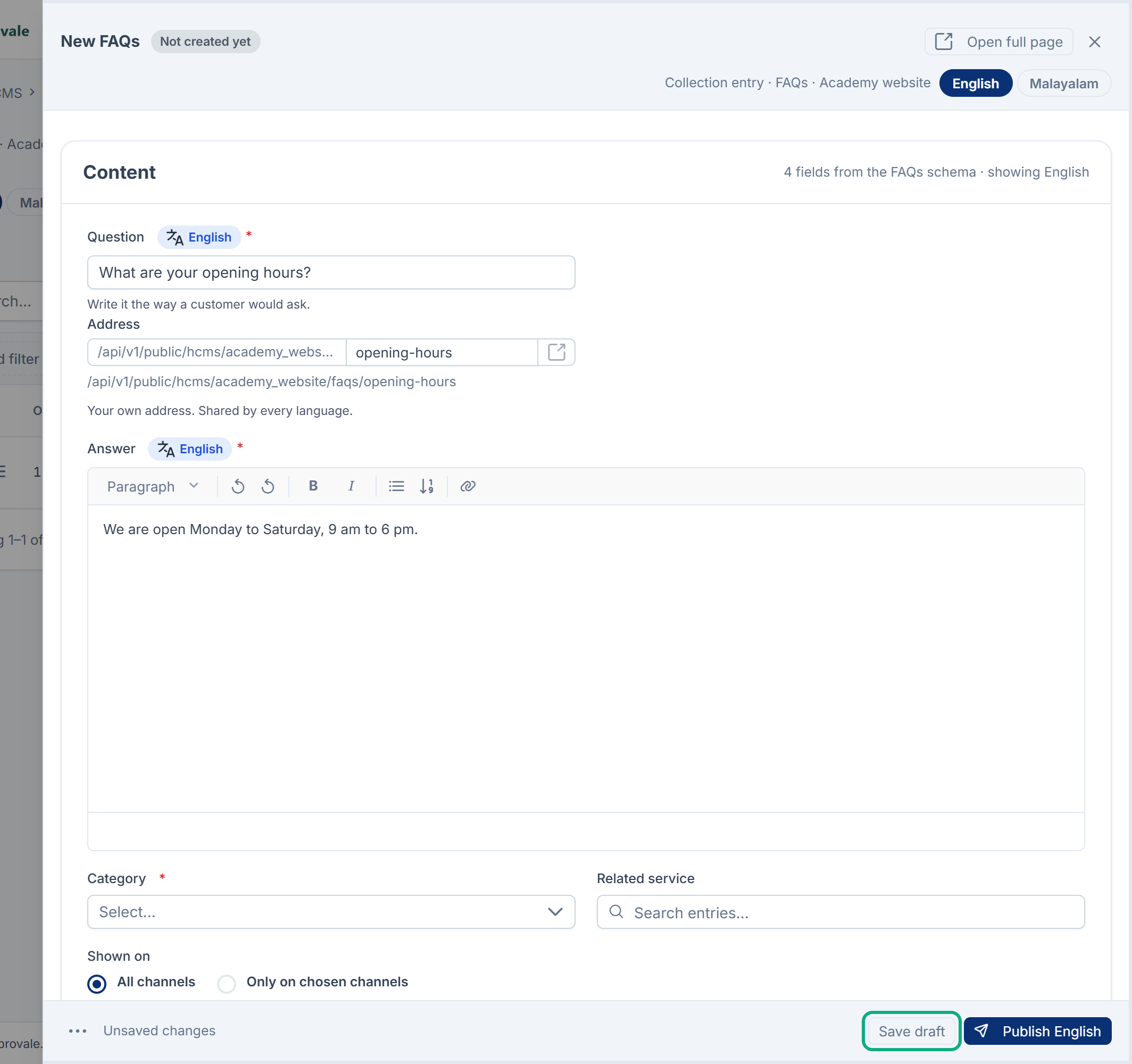
You see Draft saved. Applications don't receive drafts. If your browser closes before you save, the editor offers your unsaved edits the next time: select Restore to get them back, or Discard.
3. Publish it
-
Select the publish button. It reads Publish, Publish changes or Publish again, or Publish English (or another language) when the schema has translatable fields. You can also press Ctrl+Shift+Enter.
-
Read the check that opens. It lists each field that changes for applications, with Applications have now and After publishing, and What the other languages receive.
-
Select Publish.
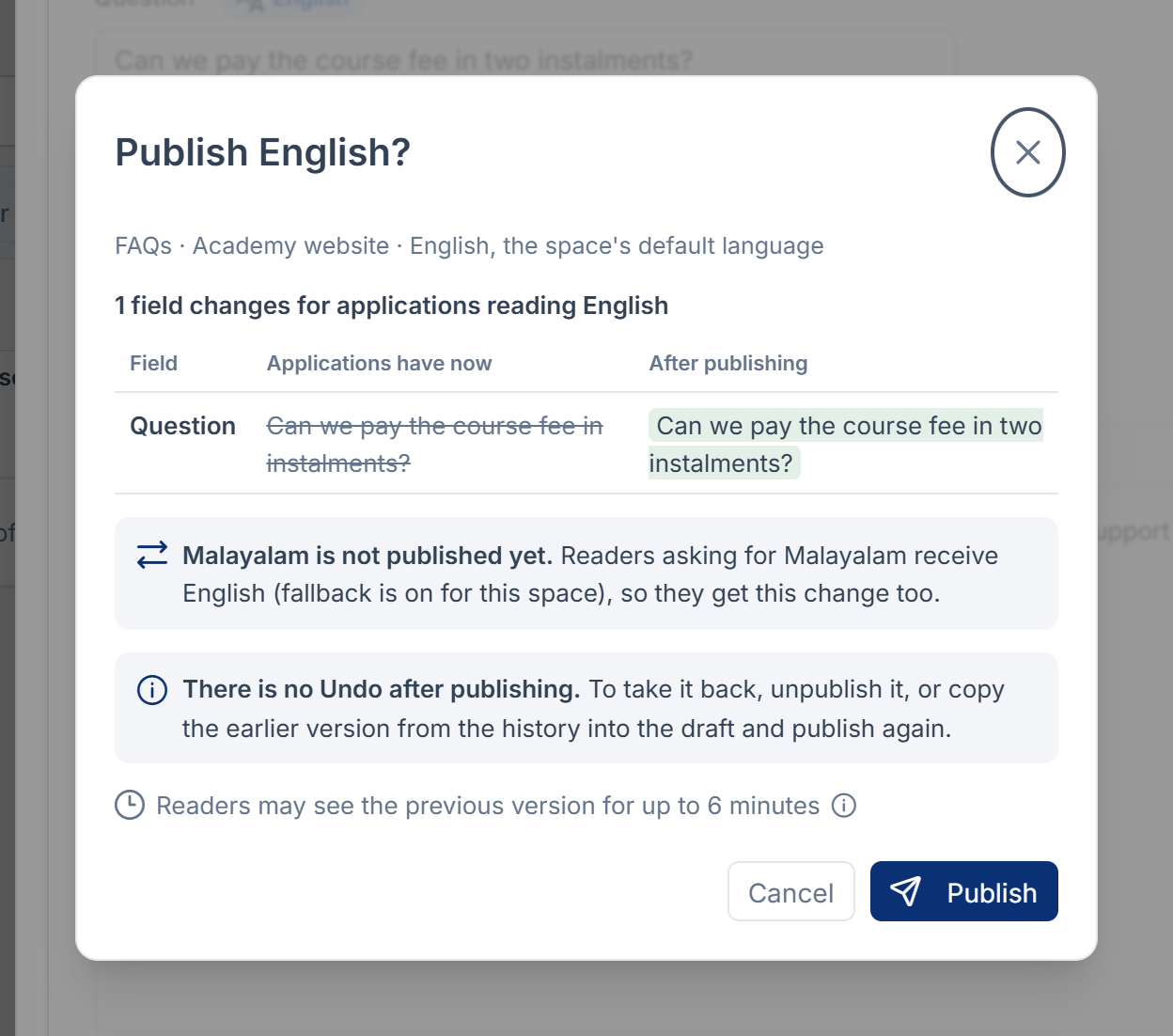
Publishing saves what you see, then publishes it. Required fields are checked now. If one is empty or breaks a rule, you see This couldn't be published. Fix these first: with the fields named.
Careful: There's no Undo after publishing. To take it back, unpublish it, or copy an earlier version from its history into the draft and publish again.
If you can't publish, the editor says so: Save your draft and ask someone who can publish, with the names of people who can.
Shared values and languages
A field can be Translatable (a value per language) or shared (one value for every language). Publishing any language also publishes the entry's shared values, its address and its channels for every language. The check names each language a shared change reaches. A schema with no translatable field publishes once for every language. See Translate content into your other languages.
Take a change back
Open the entry and select More actions (⋯):
| Action | What it does | Undo |
|---|---|---|
| Unpublish language | Applications stop receiving the entry in that language. Your draft and the last published version are kept. | Yes, for a few seconds |
| Discard changes | Puts that language's draft back to the version published last. | Yes |
| Discard shared changes | Puts the shared fields back to their published values, for every language. | Yes |
| View history | Lists the published versions, by language. Select one, then Copy into draft, and publish to make it live again. | Not needed |
| Duplicate | Makes a new draft, "title (copy)", at the end of the list. Collections only. | Not needed |
| Move to trash | Applications stop receiving the entry in every language. Collections only: a Single can't be trashed, so unpublish it instead. | Yes |
Save or discard your edits before you copy a version from the history.
Tip: View what applications receive in the same menu shows the published copy that applications have now. Preview in API explorer shows your draft as the API would send it, before anyone receives it.
Work with a Collection's list
- Order: select Move up or Move down on a row. The order changes what applications receive, so it needs permission to publish. Clear the filters first.
- Views: Has unpublished changes, Drafts, Missing a translation and Translation out of date narrow the list. See How saved views work.
- Several at once: tick rows, then select Publish, Unpublish or Move to trash in the selection bar. Each entry is checked on its own. If one can't be done, the others still go, and Some rows were skipped lists which and why.
- Trash: open the list's Trashed view from the menu at the end of the toolbar. Entries there are kept for 30 days by default, then removed for good. Restore brings an entry back unpublished in every language. Remove for good deletes it now, after you type its address or title.
Moving a published entry to the trash needs permission to unpublish as well as to delete. Removing for good needs feature., which the CMS Administrator role holds.
If someone saved first
If someone else saved the entry while you were editing, Someone saved this entry first opens. Nothing of yours was written yet. For each field that differs, choose Keep mine or Take theirs, then select Save.
What happens next
Applications receive the published language from their next request. On a Public space, a website or app may keep showing the previous version for a few minutes, up to the space's cache window (6 minutes by default). Restricted spaces aren't cached publicly, so their readers get the change at once.
Later edits are a new draft: the entry shows Unpublished changes, and applications keep receiving the published copy until someone publishes again.
Keyboard: Ctrl+S saves the draft, Ctrl+Shift+Enter publishes the language you're on, and Alt+L moves to the next language (Cmd instead of Ctrl on a Mac).
Thanks. That helps us decide what to write next.
Thanks for telling us what was missing.
You already answered for this article today. Thanks.
We got a lot of answers from your network just now. Try again in a few minutes.
We couldn't send that. Check your connection and try again.
Links in this article
Printed from help.bsscn.com. The online article may have changed since.