Track AI usage and cost
See what your AI features spend on the Overview, by provider, model and feature, spot waste and failover, and look up or export every call in Usage & Cost.
- Applies to
- AI Manager 2.2 and later
- Who can do this
- Platform owner, Administrator
- Permission
feature.ai. dashboard.view - Where
- AI Manager › Overview
On this page
Every attempt to call a provider is recorded with its tokens, cost and outcome. The Overview sums those records up, and Usage & Cost lists each one.
Before you start
- Overview needs View the AI overview and spend summary (
feature.).ai. dashboard.view - Usage & Cost needs List AI usage and cost (
feature.), plus View an AI usage record (ai. usage.list feature.) to open a record and Export AI usage and cost (ai. usage.view feature.) to export.ai. usage. bulk_export
Costs are worked out from your own rate cards, in US dollars. They're estimates, not the provider's bill. Compare them with your invoices from the provider now and then, and correct your rates if they drift. See Set up models and rates.
Read the Overview
- Open AI Manager › Overview.
- Choose the period at the top: 7 days, 30 days or 90 days. It starts on 30 days. Select Refresh to load the latest figures.
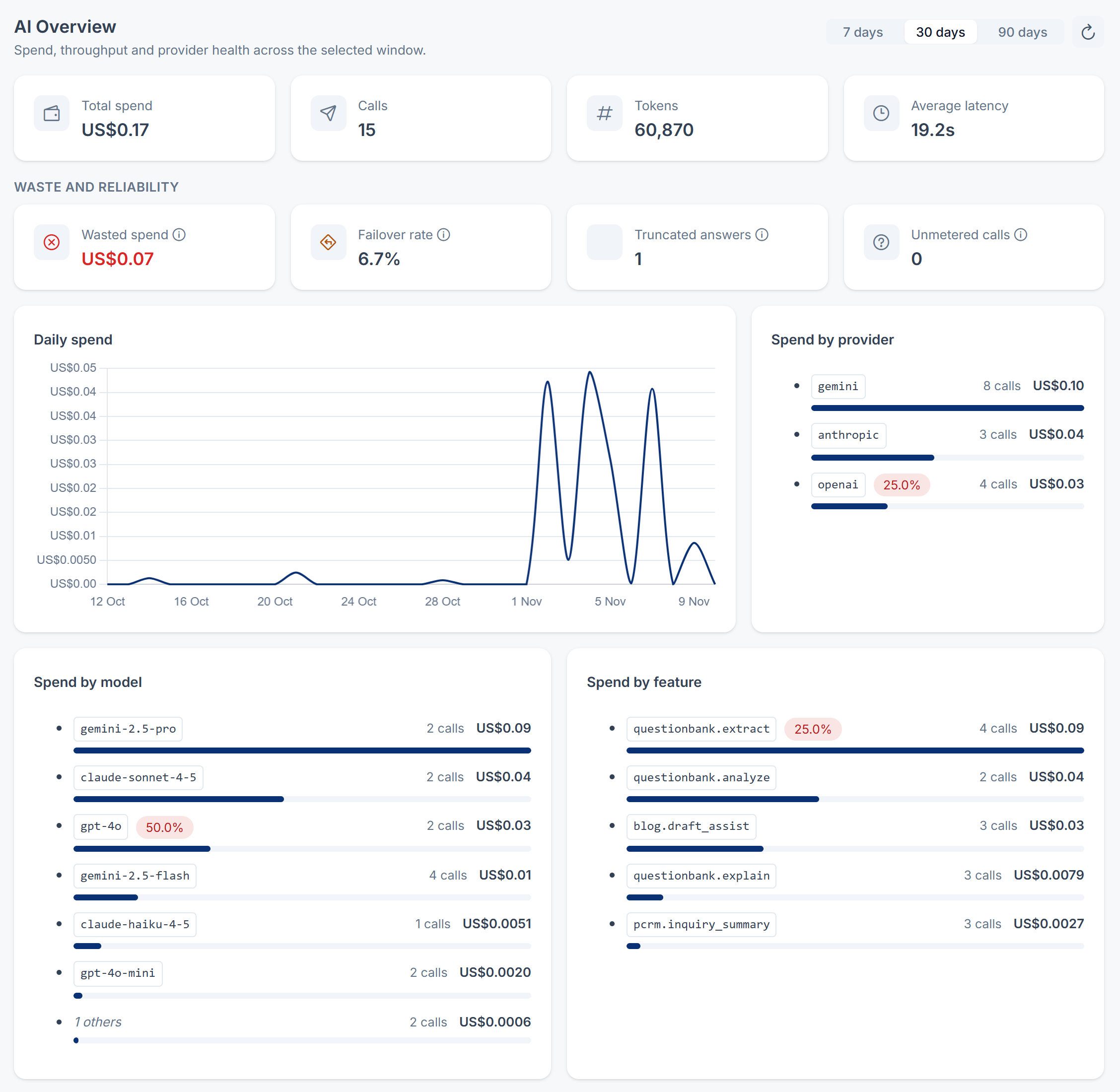
The top row shows Total spend, Calls, Tokens and Average latency for the period.
Waste and reliability shows where money or reliability is leaking:
| Figure | What it counts |
|---|---|
| Wasted spend | The cost of answers that came from a retry or from a backup provider, and of answers cut off at their limit. Failed attempts are recorded at no cost, so this figure counts the answers that finally worked after a retry or failover, not the attempts that failed. |
| Failover rate | The share of calls answered by a backup provider. Failover hides a broken provider from the people using your features, so this is where you notice it. |
| Truncated answers | Answers stopped at the model's Max output tokens. They're paid for in full and often unusable. Raise the limit if this grows. |
| Unmetered calls | Answered calls for which the provider reported no token counts. They're recorded at no cost, so Total spend is too low by an unknown amount. |
Below them:
- Daily spend: one point per day, including days with no calls. Days follow your Laramin's own calendar, not UTC.
- Spend by provider, Spend by model and Spend by feature: the six biggest, with the rest added up as number others. Spend by feature names the add-on feature that asked, such as
questionbank..extract
If no calls were made in the period, you see No calls in this window.
Look up a call
-
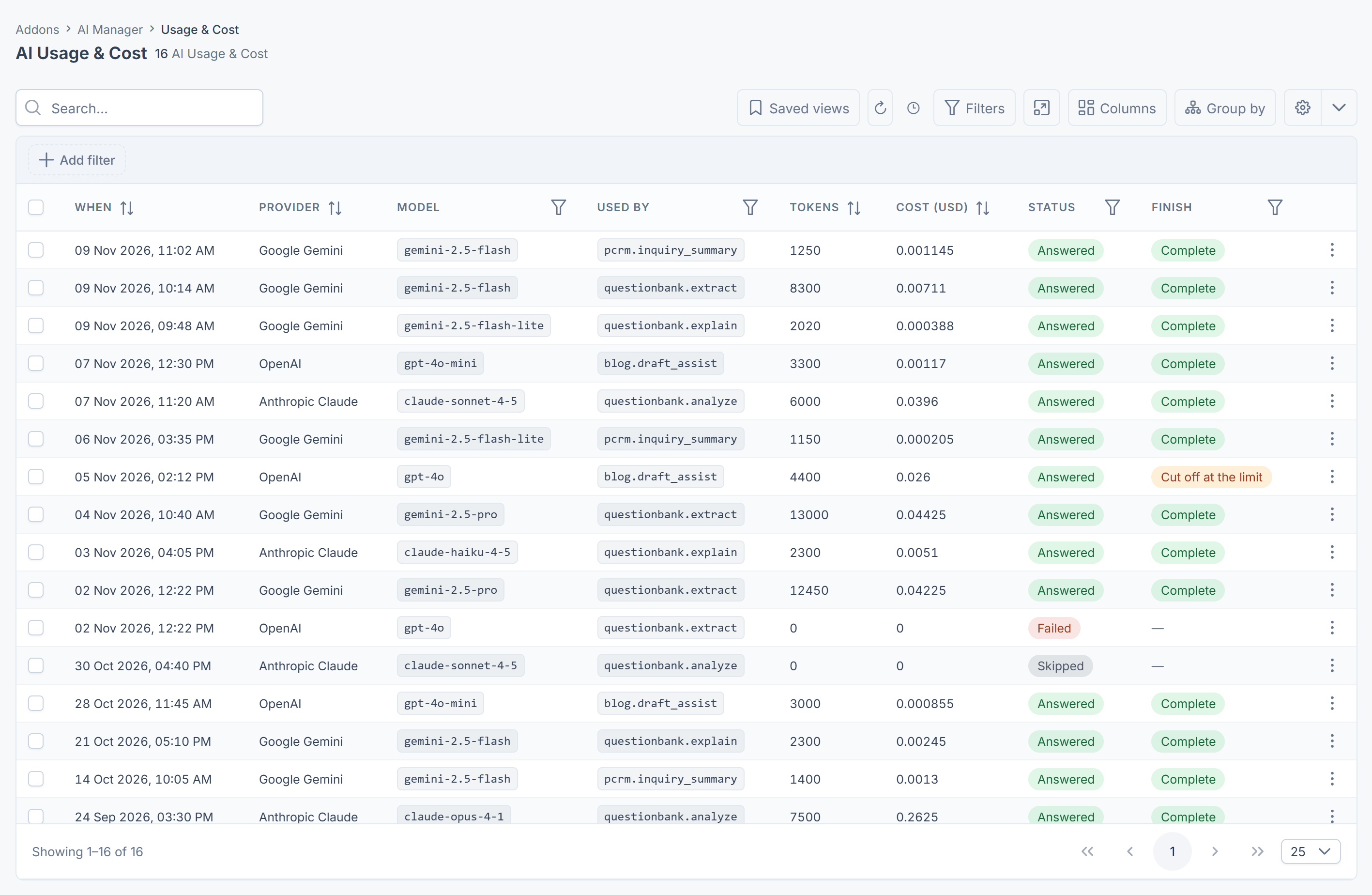
Open AI Manager › Usage & Cost. The newest calls are first.
-
Narrow the list with the filters: Model, Used by, Status and Finish. Add Capability, Tier and Latency (ms) from the columns menu.
-
Open a row to see everything recorded about that attempt.
| Column | What it shows |
|---|---|
| When | When the attempt finished. |
| Provider, Model | Who answered, as they were named at the time. Records of a deleted provider still show its name. |
| Used by | The add-on feature that asked, such as questionbank.. |
| Tokens, Cost (USD) | What the attempt used and cost. |
| Status | Answered, Failed, or Skipped (nothing was sent, for example because the provider was over a limit). |
| Finish | Why the answer ended: Complete, Cut off at the limit, Blocked by the provider's safety filter, or Other. |
A record's page groups the details into The call, Tokens, Cost and rates, Outcome and Correlation. Cost and rates shows the rates and Price list version used, so you can repeat the sum. Outcome shows the Attempt number, whether it was a Failover, and the Reason and Error for a failed or skipped attempt. Correlation shows the Request ID, which is the same on every attempt of one request, and the context the add-on attached.
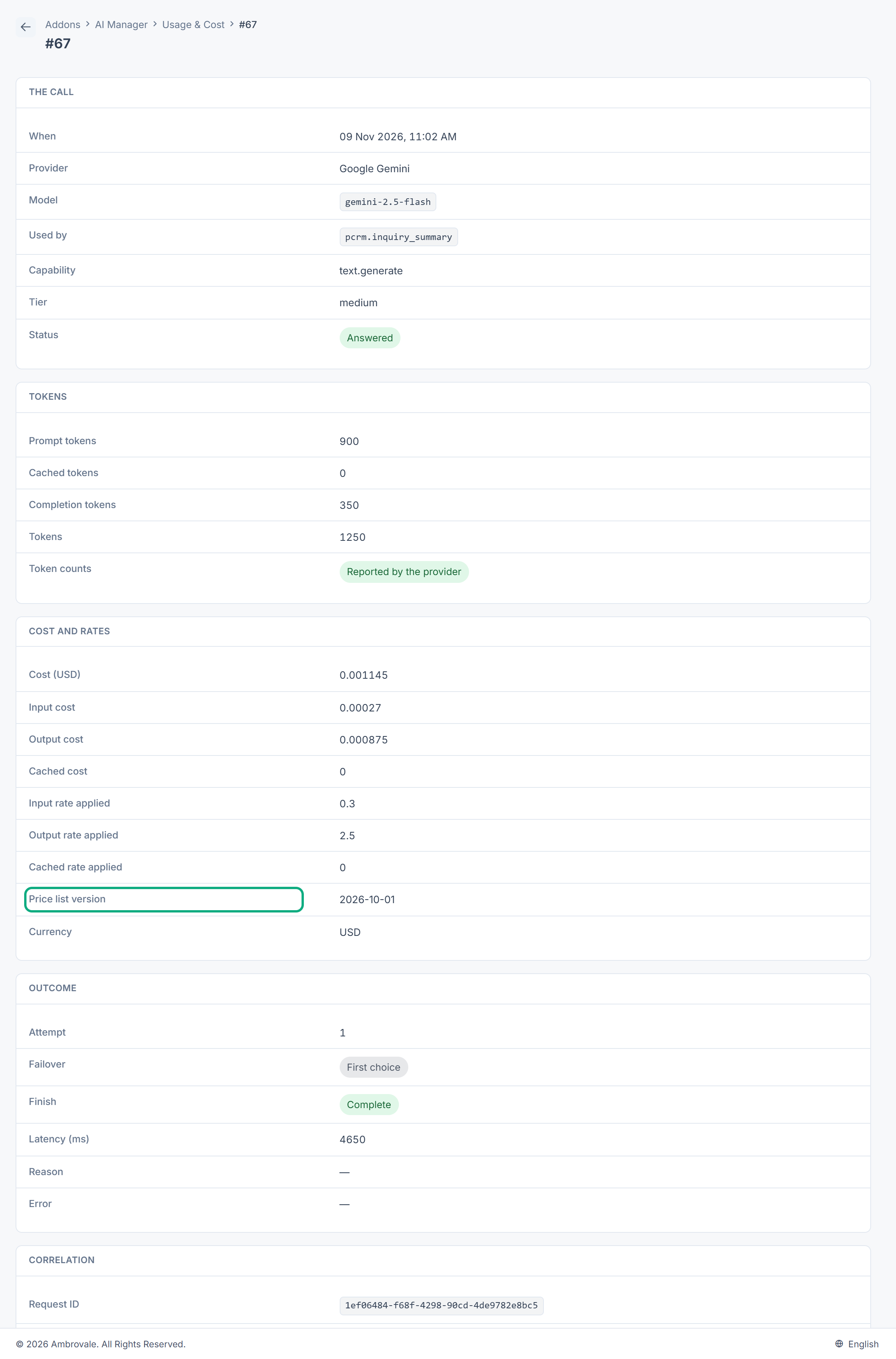
Usage records don't contain the instructions, content or answers. They can't be edited or deleted.
Export
Select the export button on Usage & Cost to download the list as CSV, with your filters applied. See Export a list to CSV.
Thanks. That helps us decide what to write next.
Thanks for telling us what was missing.
You already answered for this article today. Thanks.
We got a lot of answers from your network just now. Try again in a few minutes.
We couldn't send that. Check your connection and try again.
Links in this article
Printed from help.bsscn.com. The online article may have changed since.