AI requests fail or are skipped
A feature that uses AI does nothing or reports an error, usage records show Failed or Skipped, or a provider is never used. Find the cause in Usage & Cost and fix it.
- Applies to
- AI Manager 2.2 and later
- Who can do this
- Platform owner, Administrator
- Permission
feature.ai. usage.list - Where
- AI Manager › Usage & Cost
On this page
Symptom
One of these:
- A feature that uses AI, such as reading a question paper in Question Bank, does nothing or reports that AI isn't available.
- Rows in AI Manager › Usage & Cost show Failed or Skipped.
- A provider you connected never answers, or you got the alert AI requests are failing over.
Check these, in order
1. Is there anything in Usage & Cost?
Open AI Manager › Usage & Cost and filter Used by to the feature, for example questionbank..
- Rows with Skipped: go to step 3.
- Rows with Failed: go to step 4.
- No rows at all: nothing was asked of AI Manager. Check step 2.
2. No provider can do the job
An add-on only asks when AI Manager has at least one Active model, from an Active provider, that can do the kind of work it needs. If none can, the add-on skips its AI step and nothing is recorded.
- In AI Manager › AI Providers, check that at least one provider shows Ready in Availability. If it shows No credentials or Inactive, see Connect an AI provider. If it shows Driver missing, the add-on that brings that provider is turned off.
- In that provider's Models & rates, check that an Active model has the capability the feature needs, for example Image understanding for scanned papers.
Most add-ons do their AI work in the background. If the queue worker isn't running, nothing happens and nothing is recorded. See An add-on is stuck or failed for how to check the queue.
3. Requests are skipped
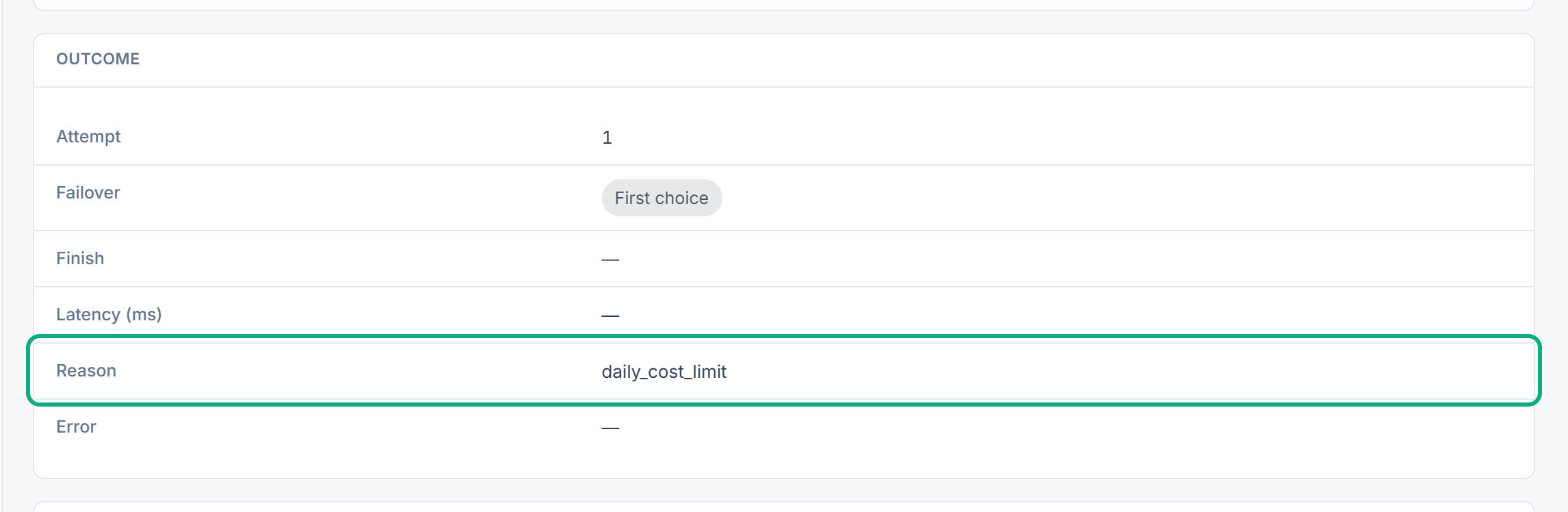
Open a skipped row and read Reason.
| Reason | What it means | Fix |
|---|---|---|
daily_cost_limit or monthly_ | The provider was over its spend limit, so it was skipped. | Raise or clear the limit, or wait for it to reset. See Set spending limits and alerts. |
rate_limit | The provider had already had its Requests per minute. | Raise Requests per minute, or connect a second provider to take the overflow. |
unavailable, with no provider | No Active model was at the tier the feature asked for. AI Manager doesn't use a model from another tier. | Check the Tier column of the row, then give an Active model that tier, with the right capability. See Set up models and rates. |
4. Requests fail
Open a failed row and read Reason and Error.
| Reason | What it means | Fix |
|---|---|---|
unauthenticated | The provider rejected the key. | Create a new key, paste it on the provider, and select Test Connection. |
rate_limited | The provider is limiting your requests. AI Manager retried. | Set the provider's Requests per minute below its limit, or raise your limit with the provider. |
timeout | The provider didn't answer in time. AI Manager retried. | Raise the provider's Request timeout (seconds). Long jobs, such as reading an image, can take minutes. |
unavailable | The provider couldn't be reached, or its Base URL isn't allowed. | Check the Base URL starts with https://, and that your server can reach the provider. |
rejected | The provider refused the request, for example an unknown model name or a request it won't accept. | Check the model's Upstream column. A model marked Retired upstream fails every time: set it to Inactive and add its replacement. |
empty_response | The provider answered with nothing. The Finish column may say why, for example Blocked or Cut off at the limit. | For Cut off at the limit, raise the model's Max output tokens. For Blocked, the provider's safety filter refused the content. |
5. A backup provider is answering
If rows show Fell back to this provider under Failover, the first provider is failing and the next one is covering for it. Your features still work, but each request may cost more and come from a different model. Open the failed rows for the first provider and use step 4.
6. Requests stop at the first provider
If a provider fails and the request isn't tried on the next one, check that more than one provider is Ready, with an Active model at the same tier.
Saving AI Manager › Routing Settings turns failover off, even though Try the next provider on failure still shows Enabled. If someone has saved that panel, requests stop at the first provider. See AI Manager settings and permissions.
Still not working?
Raise a ticket from Support Center in your Laramin app. Include this page's link, the feature you used, and a screenshot of a failed or skipped record's Outcome and Correlation panels. Never include your API key.
Thanks. That helps us decide what to write next.
Thanks for telling us what was missing.
You already answered for this article today. Thanks.
We got a lot of answers from your network just now. Try again in a few minutes.
We couldn't send that. Check your connection and try again.
Links in this article
Printed from help.bsscn.com. The online article may have changed since.