Set up models and rates
Check and change the models each provider offers: their tier, what they can do, their price per million tokens and their answer length limit. Add a model, and compare your details with what the provider publishes.
- Applies to
- AI Manager 2.2 and later
- Who can do this
- Platform owner, Administrator
- Permission
feature.ai. model.edit - Where
- AI Manager › AI Providers › Models & rates
On this page
Each provider comes with a list of models and prices, called its rate card. AI Manager uses it twice: to choose a model when an add-on asks for AI, and to work out what each call cost. Check it when you connect a provider, and again when the provider changes its prices.
Before you start
- You need Edit an AI model and its rates (
feature.) in the AI Providers & Models group. List AI models (ai. model.edit feature.) lets you see the list without changing it.ai. model.list - Have the provider's current price list open, in US dollars per million tokens.
Open a provider's models
- Open AI Manager › AI Providers.
- In the provider's row, select Models & rates.
Each row is one model at one tier. The same model can appear twice when it serves two tiers.
Check or change a model
-
Open the model's actions menu and select Edit.
-
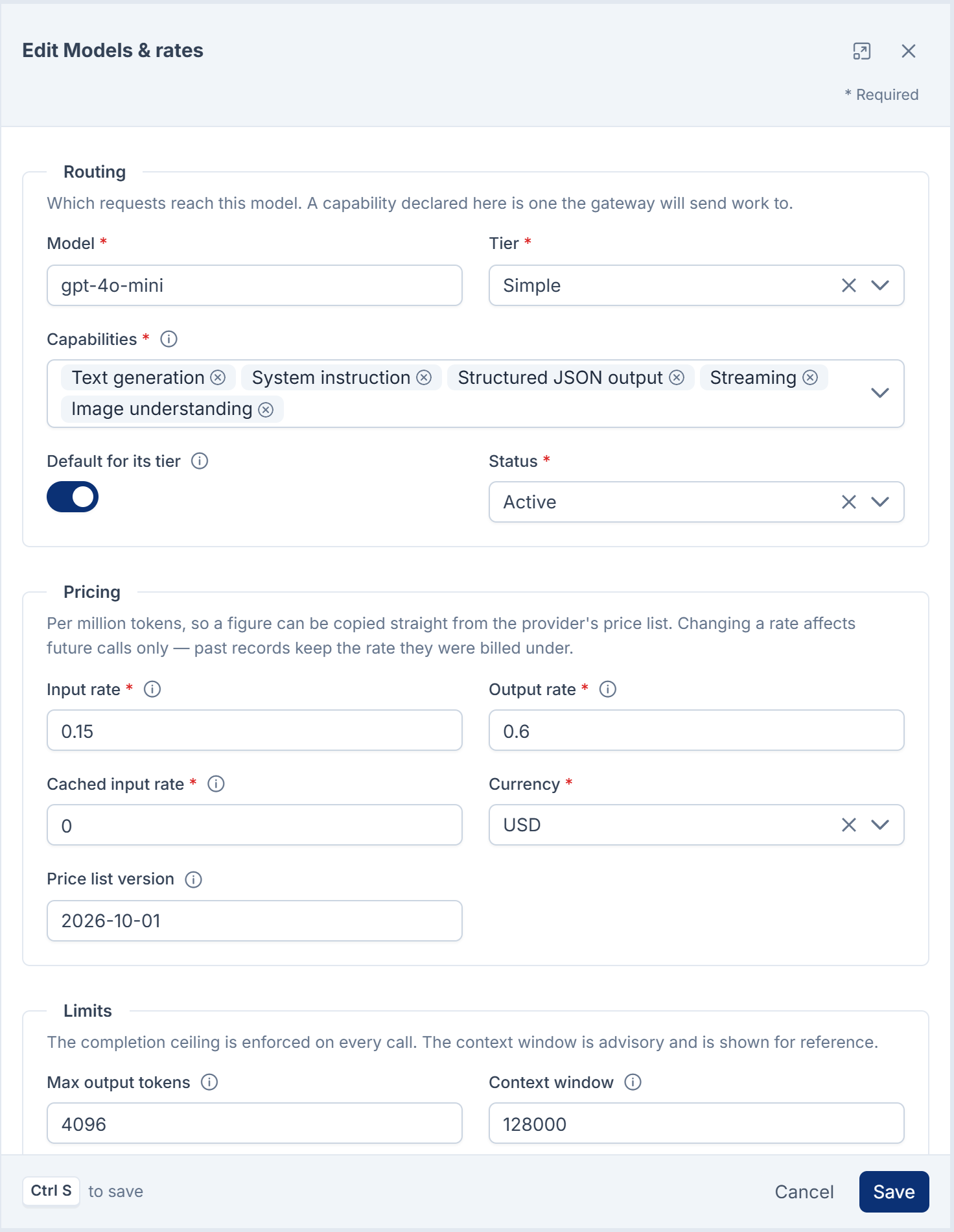
Under Routing, check:
- Tier: Simple, Medium, High or Very high. An add-on asks for a tier, and only models at exactly that tier can answer it.
- Capabilities: what the model can actually do, such as Text generation, Image understanding or Structured JSON output. Only declare what it can do. A model sent work it can't do may answer anyway, with nothing useful.
- Default for its tier: tried first when this provider has more than one model at the same tier.
- Status: only Active models are used.
-
Under Pricing, copy the figures from the provider's price list:
- Input rate and Output rate: US dollars per million tokens.
- Cached input rate: the lower price some providers charge for the repeated part of a prompt.
- Price list version: a label for this set of prices, for example the date you copied them. Every usage record keeps it, so you can tell later which prices a cost was worked out with.
-
Under Limits, check Max output tokens: the longest answer the model may give on any call. Too high lets one call cost a lot. Too low cuts answers off mid-sentence, and they're still billed in full. Context window is for your reference only.
-
Select Save.
You see Model name updated. New prices apply to later calls only. Usage records already written keep the prices they were worked out with.
Add a model
When a provider releases a model you want to use:
- On the provider's Models & rates, select New model.
- Enter Model exactly as the provider names it in its API, for example
gpt-4o-mini. - Fill in Tier, Capabilities, the three rates, Currency (USD) and Max output tokens.
- Select Save.
To stop using a model, set its Status to Inactive, or delete it.
Compare with what the provider publishes
Every day at 04:10, AI Manager asks each active provider for its list of models, and compares it with your rate card. The Upstream column shows the result:
| Upstream | Meaning |
|---|---|
| In sync | Nothing the provider publishes differs from your details. |
| Differs | A detail the provider publishes, such as the context window, differs from yours. |
| Retired upstream | The provider no longer lists this model. Every request sent to it will fail. Set it to Inactive and add its replacement. |
| Listed, not verified | The provider lists the model but publishes none of its details. |
| Cannot be checked | This provider publishes no model list. |
| Not checked yet | No check has run yet. |
To see the details, select Compare with provider in the model's row. The Stored vs provider page lists each field with your value, the provider's, and whether they match.
- Select Check now to ask the provider again straight away. It reads the provider's model list only, which costs nothing.
- Next to a field that Differs, select Adopt to take the provider's value. Adopting a price sets Price list version to today's date.
Providers don't publish their prices through their API today, so the rate fields show Not published, and the page says when your rates were last confirmed. Keep checking prices against the provider's price list yourself.
Thanks. That helps us decide what to write next.
Thanks for telling us what was missing.
You already answered for this article today. Thanks.
We got a lot of answers from your network just now. Try again in a few minutes.
We couldn't send that. Check your connection and try again.
Links in this article
Printed from help.bsscn.com. The online article may have changed since.