Workspaces, teams and experiences: the basics
A workspace is the business you work in, a team is a group inside it, and an experience is how the app is arranged for you. Your roles decide what you can do.
Why this step
These ideas explain why your menu looks the way it does, and why a colleague's might look different.
Today you only need:
- Applies to
- Core 12.0 and later
- Who can do this
- Team member, Administrator, Platform owner
In short
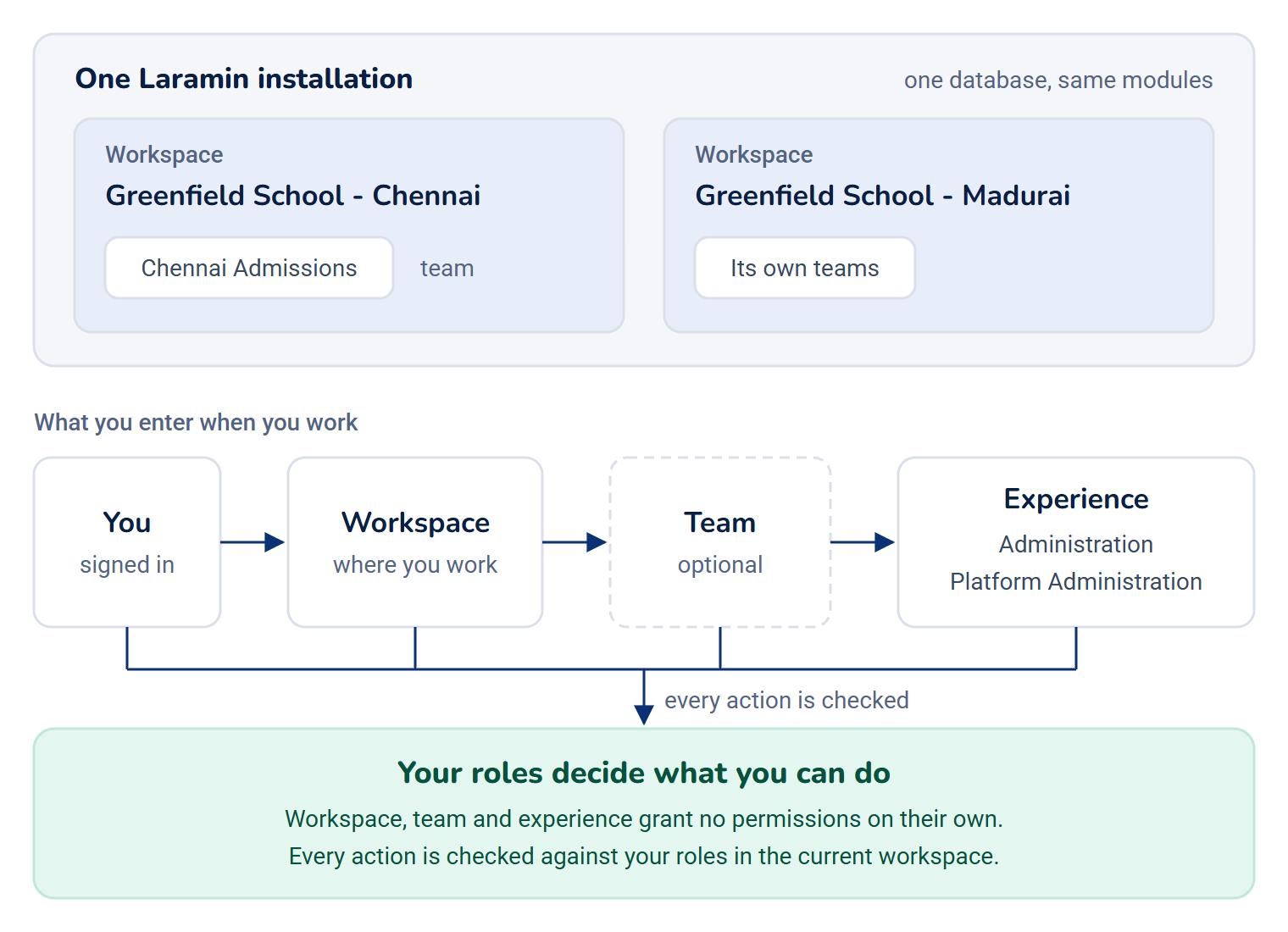
One Laramin installation can run several businesses. Each one is a workspace. Inside a workspace, people can be grouped into teams. An experience is the way the app is laid out for you: its menu, its layout and the page you land on. None of these three grants permissions on its own. Your roles do that.
How it works
Workspace: where you are working
A workspace is the business or branch you are operating in right now, for example "Greenfield School - Chennai" and "Greenfield School - Madurai". All workspaces share one installation, one database and the same set of modules.
- Each workspace has a Name and a Code. The code is a short handle that you can change at any time.
- One workspace is the Default. It is where a session starts when a person has no preference of their own.
- A workspace can be Archived. Nobody can enter an archived workspace, but records that were made in it are kept.
- The workspace's Time zone decides what "today", working days and due times mean for everyone in it.
At sign-in, Laramin calls a workspace a business: the chooser asks you to Choose a business.
Team: a group inside one workspace
A team is a workgroup that belongs to exactly one workspace, for example "Chennai Admissions" inside the Chennai workspace. A team can't be moved to another workspace.
Teams matter for permissions. A role can be held in one team, so you can be a manager in one team and a reader in another. In the header, the team switcher also offers Global, which means "Your platform-wide permissions apply."
To use a team, you must be a member of both the team and its workspace.
Experience: how the app is arranged for you
An experience sets the layout, the sidebar menu and the home page you land on. The switcher in the header calls it a View. Core ships two experiences:
- Administration
- Platform Administration
Modules can add their own experiences.
An experience changes presentation only. Whichever one you pick, Laramin still checks every action against your roles in the current workspace.
An administrator chooses which experiences you can enter in each workspace. Super admins can always enter every experience.
Roles: what you can do
Your roles decide what you can do. An administrator gives them to you. If you can't do something you need, ask your administrator.
How it relates to
- Signing in: if you can reach more than one workspace or experience, Laramin uses the default you saved. Without one, it opens the installation's default workspace if you can enter it, and otherwise asks you to pick. See Choose a workspace and experience at sign-in.
- No access yet: if you belong to no workspace, or can open nothing in it, you see a recovery screen. See You see "No business yet" or "Nothing to open here".
- Your own time zone: you can show times in your own zone, but "today" still follows the workspace. See Update your profile.
Next steps
For administrators
To set up workspaces and teams, and to decide who can enter each experience, see How workspaces, teams and experiences control access.
Links in this article
Printed from help.bsscn.com. The online article may have changed since.