Work through new inquiries
Find the inquiries nobody has picked up, hand each one to someone, contact the lead, and then convert them into a client or mark them lost.
Why this step
A new lead cools quickly. A manager hands each one to someone, who gets in touch before it shows Never contacted.
Today you only need:
- Applies to
- Property CRM 5.0 and later
- Who can do this
- Team member
- Permission
feature.pcrm. inquiry.edit - Where
- Property CRM › Inquiries
Before you start
- To update an inquiry you need
feature.. Every Property CRM role except Viewer has it.pcrm. inquiry.edit - To hand an inquiry to someone you need
feature.(Admin and Manager). That goes for the Assign action and for the Assigned To field in the inquiry form. To convert one you needpcrm. inquiry. assign feature.(Admin, Manager and Agent).pcrm. inquiry. convert - Work in your business's workspace, not All Workspaces.
Find the new inquiries
-
In the Property CRM sidebar, open Inquiries. In the Platform Administration sidebar, it's Property CRM › Inquiries.
-
Filter Status to New. See Filter a list.
Under each status, the list says how long the inquiry has waited. A new inquiry shows, for example, Waiting 40 min. Once it has waited longer than the Lead Response Window (hours) setting, 24 hours unless your business changed it, the line turns red and reads, for example, Never contacted · 2 d. Unassigned in Assigned To means nobody has taken the inquiry yet.
Inquiries sent from your website arrive with Inquiry Source set to Website, Status set to New, and nobody assigned. If the visitor sent the form from a property's page, the inquiry names that Property.
Hand an inquiry to someone
- Open the inquiry's row actions menu and select Assign.
- In Assigned To, choose the person.
- Select Assign.
The person must work in this business. Otherwise Laramin says That person does not work in this business. The person you assign is notified.
The Assigned To field in the inquiry form also changes who has the inquiry, and it needs the same permission. Without it, for example as an Agent or a Telecaller, the field is read-only: you see who has the inquiry, but you can't change it. An inquiry you add arrives unassigned, and a manager hands it to someone.
Contact the lead
- Select the inquiry to open it.
- Use Call, WhatsApp or the email button at the top to get in touch. The Brief card shows what they asked for.
- If your Laramin has the CRM add-on, select Schedule follow-up to plan the next contact.
- Select Edit Inquiry, set Status to Contacted, or Qualified once you know what they want, and select Save.
Laramin records when the inquiry was first contacted and when it was qualified. You see those dates on the inquiry.
Convert the inquiry into a client
When the lead is a real buyer or tenant, convert them.
-
Check that the inquiry has a Property Type on its Brief step. Laramin needs it to create a requirement.
-
In the Inquiries list, open the inquiry's row actions menu and select Convert.
-
Leave Also create a requirement from this lead ticked, or untick it to convert without one.
-
Select Convert to confirm.
Laramin says Lead converted — a client record is now in the CRM. The inquiry's status becomes Converted and can't be changed back. Laramin finds the person by their mobile number, or creates them, and gives them the Buyer role. If you asked for a requirement, it's created from the brief, and the inquiry's agent carries over to it. The Conversion card on the inquiry shows the Converted Client, the Converted Requirement and when it happened.
If the brief has no property type, Laramin refuses with This lead has no property type, so no requirement can be created from it. Fill in the brief, or untick the requirement box.
Close an inquiry that goes nowhere
-
Select Edit Inquiry and set Status to Lost.
-
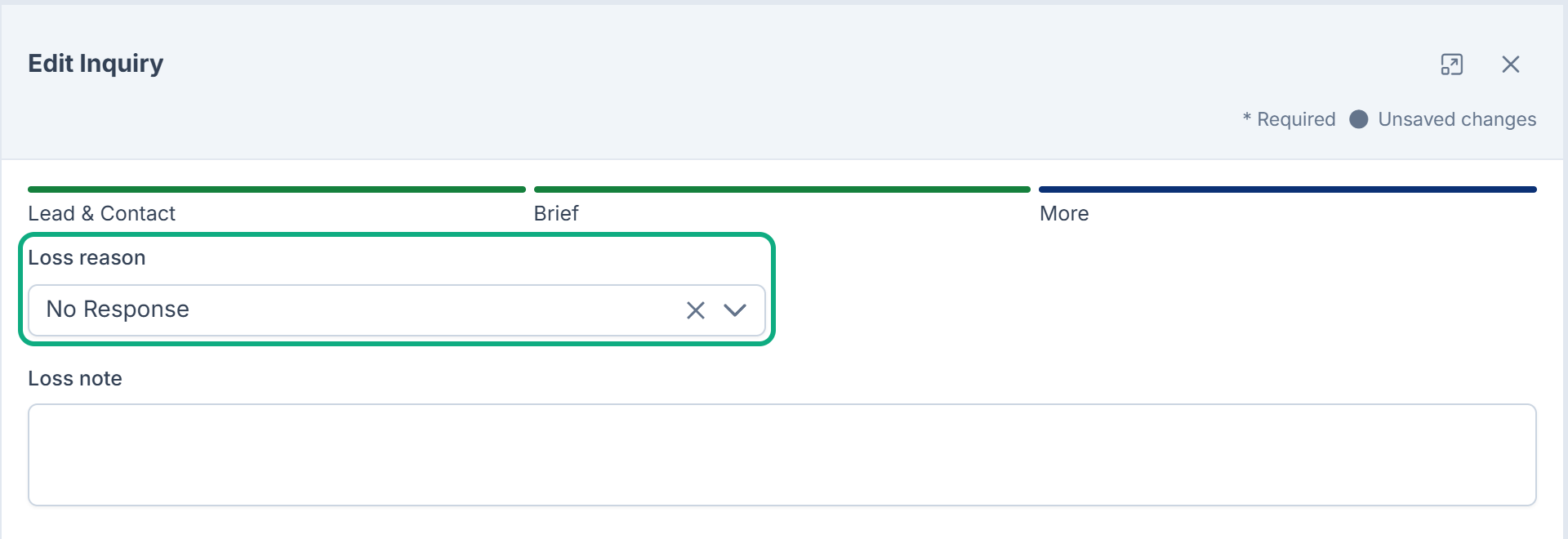
Choose a Loss reason, for example No Response or Went Elsewhere. It's required: without it Laramin says Choose a reason before marking this lead lost.
-
Add a Loss note if it helps.
-
Select Save.
Closed also ends an inquiry, without a loss reason. The dashboard's win rate counts it as not won. A lost or closed lead can be reopened later if they get back in touch.
What happens next
Work the client's requirement: see Record a client requirement for how matches and site visits work.
Links in this article
Printed from help.bsscn.com. The online article may have changed since.