Someone can't sign in with a social account
A provider's button is missing, the provider shows an error, or your Laramin refuses the sign-in with a message. Find the message below and fix the cause.
- Applies to
- Social Login 2.0 and later
- Who can do this
- Platform owner, Administrator
- Permission
feature.social. provider.edit - Where
- Social Login (Platform Administration)
On this page
Symptom
Someone tries to sign in with Google, Apple or another provider, and one of these happens:
- The provider's button isn't on the Sign-In screen.
- The provider's own page shows an error, such as
redirect_.uri_ mismatch - They come back to the Sign-In screen with a message from your Laramin.
- They come back to Two-Factor Authentication and can't give the code.
- They're signed in, but there's nothing they can open.
- It works on the website, but fails in your mobile app.
For problems with passwords or two-factor authentication, see A user can't sign in.
Check these, in order
1. The button isn't there
A button shows only when the provider is Active and complete. In Social Login › Social Login Providers, check the provider's Readiness:
| Readiness | Cause | Fix |
|---|---|---|
| Incomplete | A required credential is missing. | Edit the provider and fill in every credential. See Set up a sign-in provider. |
| Needs attention | The provider's code isn't installed on this Laramin, for example after a downgrade or a restored backup. | Ask whoever runs your server to restore it. For Apple, that's the socialiteproviders/ package. |
| Ready, but Status is Inactive | The provider is switched off. | Set Status to Active and select Save. |
The buttons appear only on the admin Sign-In screen, not on the sign-up form.
2. The provider shows an error page
The provider refused before sending the person back. Most often, the callback address registered in the provider's console doesn't exactly match https://<your Laramin's address>: check https, the www., the provider key and that there's no /admin in it.
Fix: Correct the redirect or callback URL in the provider's console. Also check the app there is published or live, not limited to test users.
3. "This social login provider is not available."
The provider was switched off, emptied or deleted after the Sign-In screen was opened, or someone used an old link.
Fix: Check the provider is Active and Ready, then ask them to reload the Sign-In screen.
4. "Social login failed. Please try again." or "Unable to start social login. Please try again."
Your Laramin couldn't complete the exchange with the provider. Common causes:
- Same-Site Cookie is set to Strict. Every sign-in with a provider other than Apple then fails, for everyone, although the credentials are right. See the next section.
- The Client Secret is wrong, or was replaced in the provider's console. For Apple, the Team ID, Key ID or Private Key (.p8) is wrong, or the key was revoked.
- The person took too long, or used the browser's back button and tried again with an old page.
- The browser blocks cookies for your Laramin. Apple and some other providers send people back in a way that needs them.
Fix: Paste the credentials again from the provider's console and select Save. Then ask the person to start again from the Sign-In screen.
Every attempt fails: the session cookie is Strict
When the provider sends the person back, the browser must send your Laramin's session cookie with that visit. With Same-Site Cookie set to Strict, it holds the cookie back on any visit that starts on another site, so your Laramin can't match the reply to the sign-in it started. Every attempt then ends with Social login failed. Please try again. Apple isn't affected.
A Laramin installed before Core 12.8.2 starts with Strict. Newer installations start with Lax. The same setting makes links to your Laramin from emails and other websites open Sign-In. On Addons › Addon Management, Social Login's Health shows Unhealthy while a provider is ready and the cookie is Strict. That value comes from a check that runs with your scheduled jobs, so it can show Stale or Not Checked instead.
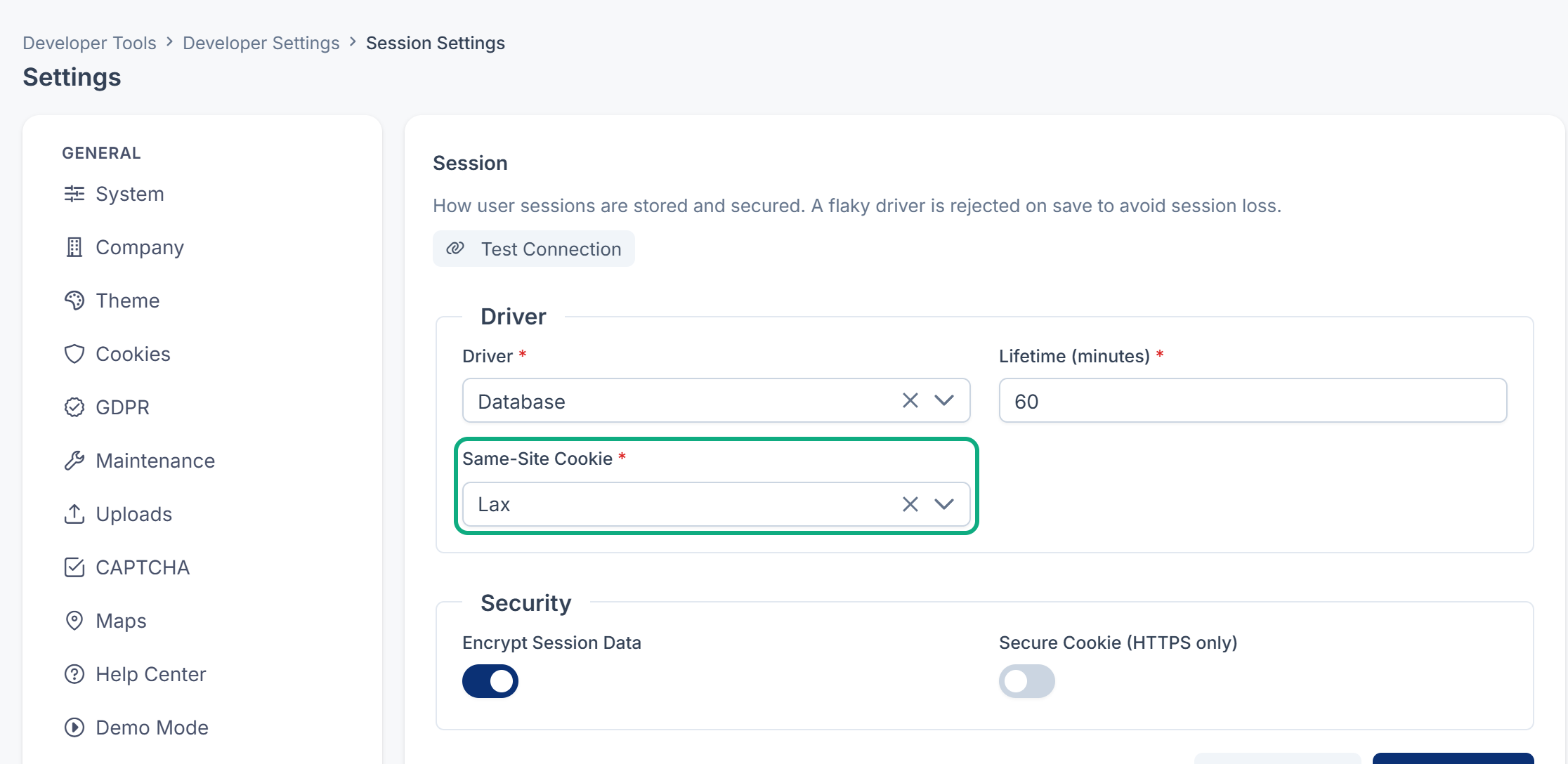
Fix: A platform owner opens Developer Tools › Developer Settings › Session Settings, sets Same-Site Cookie to Lax, and selects Save changes. Skip this only if your team chose Strict on purpose, and then offer Apple or password sign-in instead. Upgrading Laramin doesn't change this setting, and changing SESSION_ in the server's settings file doesn't help while a value is saved on the panel. See You see "Session Expired" or "Page Expired", or you're signed out.
5. "That provider did not share an email address, so we could not sign you in."
Your Laramin needs an email address to find or create the account. X and Twitter share one only when your app there has permission to ask for it. On other providers, the person may have hidden their address, or Scopes may have been changed to leave out email.
Fix: Turn on email access for your app in the provider's console, and clear Scopes to use the standard set. Or ask the person to sign in another way.
6. "An account already uses this email address. Sign in with your existing method…"
An account with that address exists, and the provider doesn't vouch for its users' addresses: Facebook, X or Twitter (OAuth 2). Your Laramin won't link them, so that nobody can take over an account by registering its address at such a provider.
Fix: The person signs in with their password. There's no way to link a provider to an existing account, so they can't add this provider later either. Offer a provider that vouches for addresses, such as Google.
7. "Sign-up is closed on this site, so a new account can't be created with…"
No account uses that address, and sign-up is off. From the website, Allow public registration decides. From your mobile app, Allow mobile app sign-up decides. Both are off to start with.
Fix: Either create the account with the person's email address, so their next social sign-in links to it (with a provider that vouches for addresses), or turn on the matching switch in Configurations › Security › Security Settings. See Security settings.
8. "User account not found/ inactive. Contact your administrator!."
Their Laramin account is inactive.
Fix: Activate the account if they should have access. See Edit a user.
9. "Access denied from your network address. Please contact your administrator."
From Social Login 2.1.2, your IP rules apply to a social sign-in as they do to a password: an IP rule or an IP block refuses the network address the person is signing in from, for their account. A password sign-in from the same address is refused the same way. In your mobile app, the sign-in is refused with the same sentence. From Social Login 2.1.3, a first sign-in is checked against your global rules before the account is created, so a refused one creates no account.
Fix: Find the rule that refuses their address and change it, or ask them to sign in from a network you allow. See Someone is locked out by an IP rule.
10. They're asked for a two-factor code
From Social Login 2.1.1, someone who has set up two-factor authentication comes back from the provider to Two-Factor Authentication, as after their password. That's expected: the provider replaces the password, not the code. They're signed in once the code from their authenticator app is accepted, and Back to sign in takes them back to the Sign-In screen.
Fix: If they don't have their phone, they select Use a recovery code. If they have neither, an administrator resets their two-factor authentication. See You can't sign in because you lost your authenticator app. If they're taken to Profile › Security instead, Require two-factor authentication is on and they haven't set it up yet: they set it up there.
On Social Login 2.1.0 and earlier, a social sign-in on the website or admin didn't ask for the code. Update Social Login to 2.1.1.
11. They're signed in, but can't open anything
A social sign-up creates an account with no roles.
Fix: Give the account a role. See Give someone a role and You see "No business yet" or "Nothing to open here".
12. "Too Many Requests"
Each IP address can start up to 30 social sign-ins a minute. A whole office behind one connection shares that limit.
Fix: Wait a minute and try again.
13. It fails only in your mobile app
Your mobile app can use a social account in one of two ways: through the phone's browser, or on the phone with Google's or Apple's own sign-in. The app's developers know which. See Social sign-in from a mobile app.
Through the phone's browser. The browser shows your Laramin's Sign-In screen with a message, or the provider shows an error:
| They see | Cause | Fix |
|---|---|---|
| That sign-in cannot return to the address it asked for. | SOCIAL_ is empty, which switches sign-in from the app off, or it doesn't include the app's return address. The message is the same in every case. | Ask whoever runs your server to set it in your Laramin's settings file to the app's return address, such as myapp://auth/*, and then run php artisan config:clear. Ask the app's developers for the address. |
redirect_, or another address error, on the provider's page | The app uses a second callback address, which must also be registered in the provider's console: https://<your Laramin's address>. The provider form in your Laramin doesn't show it. | Add it in the provider's console, next to the website's callback address. |
| That sign-in request has expired or was already used. Please start again. | The person took longer than 5 minutes, or went back and tried again. | Start again from the app. |
| Access denied from your network address. Please contact your administrator. | From Social Login 2.1.3: an IP rule refuses the phone's network address, so the browser stops before an account is created or the app is handed a code. | As in step 9. |
| … does not support sign-in from an app. | Twitter (OAuth 1.0a) can't be used from an app. | Offer another provider. |
| We could not complete that sign-in. Please try again. | Your Laramin couldn't complete the exchange with the provider, as in step 4. | As in step 4. |
| Your account is not active. Please contact support. | The person's account is inactive. | As in step 8. |
| Sign-up is closed on this site… | As in step 7: from the app, Allow mobile app sign-up decides. | As in step 7. |
On the phone, with Google's or Apple's own sign-in. The app is refused the same way whatever the reason, except an IP rule (below), and the reason is only in your Laramin's application log. Most often, the provider's form in Social Login › Social Login Providers is missing the app's ID: for Google, iOS Client ID or Android Client ID; for Apple, iOS Client ID, set to the iOS app's bundle ID. Fix: fill it in and select Save.
Either way, the app is refused with "Access denied from your network address. Please contact your administrator." From Social Login 2.1.2, an IP rule refuses the phone's network address for the person's account, as in step 9. Fix: as in step 9. A phone on mobile data has a different address from the office Wi-Fi.
The provider signs them in, but the app says "Mobile authentication is not configured." The app's sign-in itself isn't set up on your server. See Someone can't sign in to the mobile app.
Still not working?
Raise a ticket from Support Center in your Laramin app. Include this page's link, the provider, the time of the attempt and the exact message. Never send a client secret or private key.
Thanks. That helps us decide what to write next.
Thanks for telling us what was missing.
You already answered for this article today. Thanks.
We got a lot of answers from your network just now. Try again in a few minutes.
We couldn't send that. Check your connection and try again.
Links in this article
Printed from help.bsscn.com. The online article may have changed since.