Set up exam boards, topics and exams
Create the exam boards, topics, sub topics and exams your questions are filed under, choose the languages each exam is published in, and delete or restore them safely.
- Applies to
- Question Bank 3.5 and later
- Who can do this
- Administrator, Team member
- Permission
feature.qb. exam_board. create - Where
- Question Bank › Exam Boards
On this page
Before you start
- You need the Create permission for each thing you add: Create Exam Board (
feature.), Create Topic (qb. exam_board. create feature.), Create Sub Topic (qb. topic. create feature.) and Create Exam (qb. sub_topic. create feature.).qb. exam. create - Set things up in this order, because each one picks from the one before: exam boards, then topics, then sub topics. Exams need only a board.
Add an exam board
-
In the sidebar, open Question Bank › Exam Boards.
-
Select New Exam Boards.
-
Enter the Name, for example
State Public Service Commission. Names must be unique. -
Leave Slug empty to have it made from the name, or enter your own. It can't be changed once the board is created.
-
Select Save.
You see Exam Board name Created Successfully! The list shows how many Exams and Topics each board has.
Add a topic
-
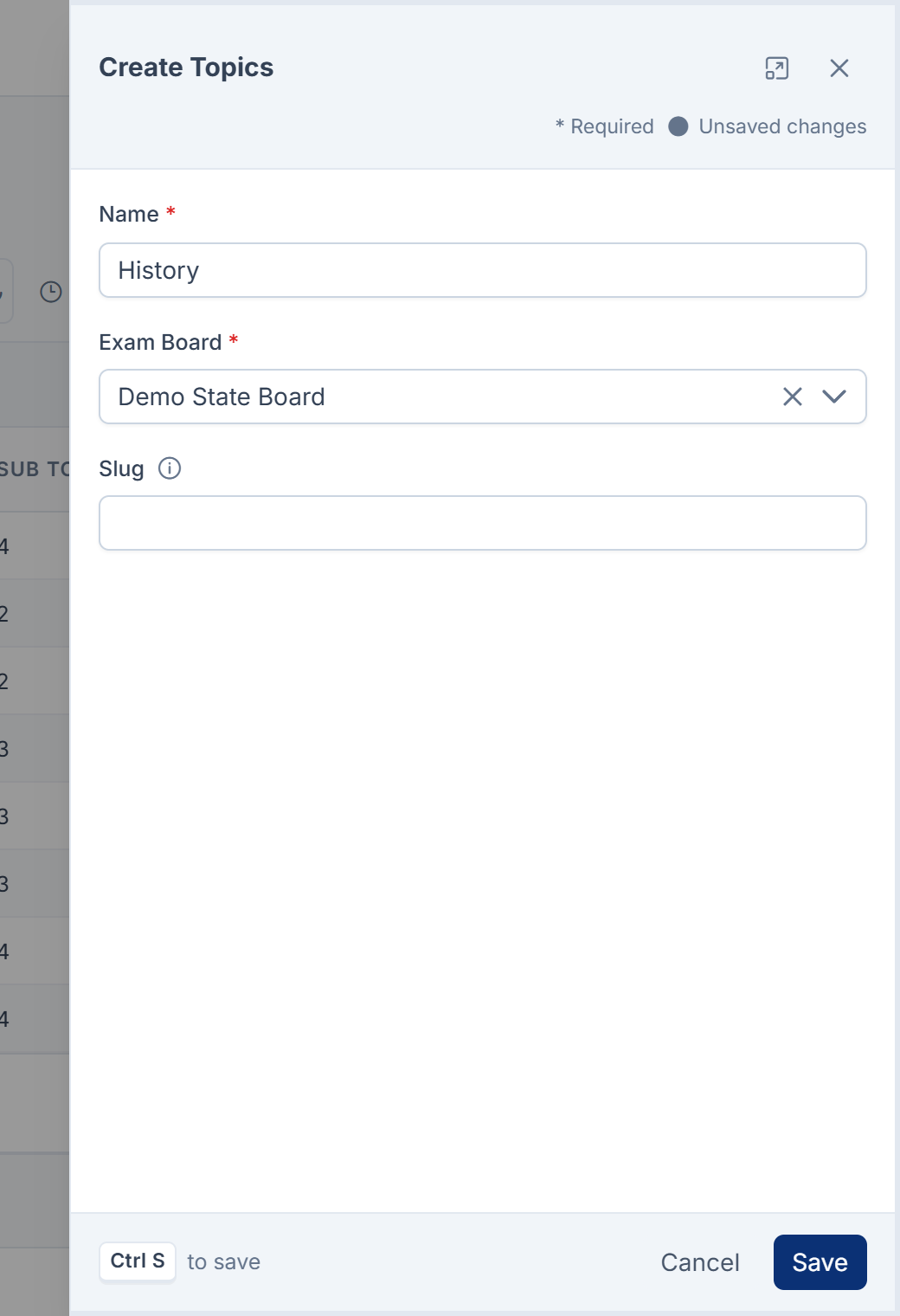
Open Question Bank › Topics and select New Topics.
-
Enter the Name, for example
History. A name can be used once per board. -
Choose the Exam Board.
-
Leave Slug empty to have it made from the name. It's unique within the board and can't be changed later.
-
Select Save.
You see Topic name Created Successfully!
Add a sub topic
-
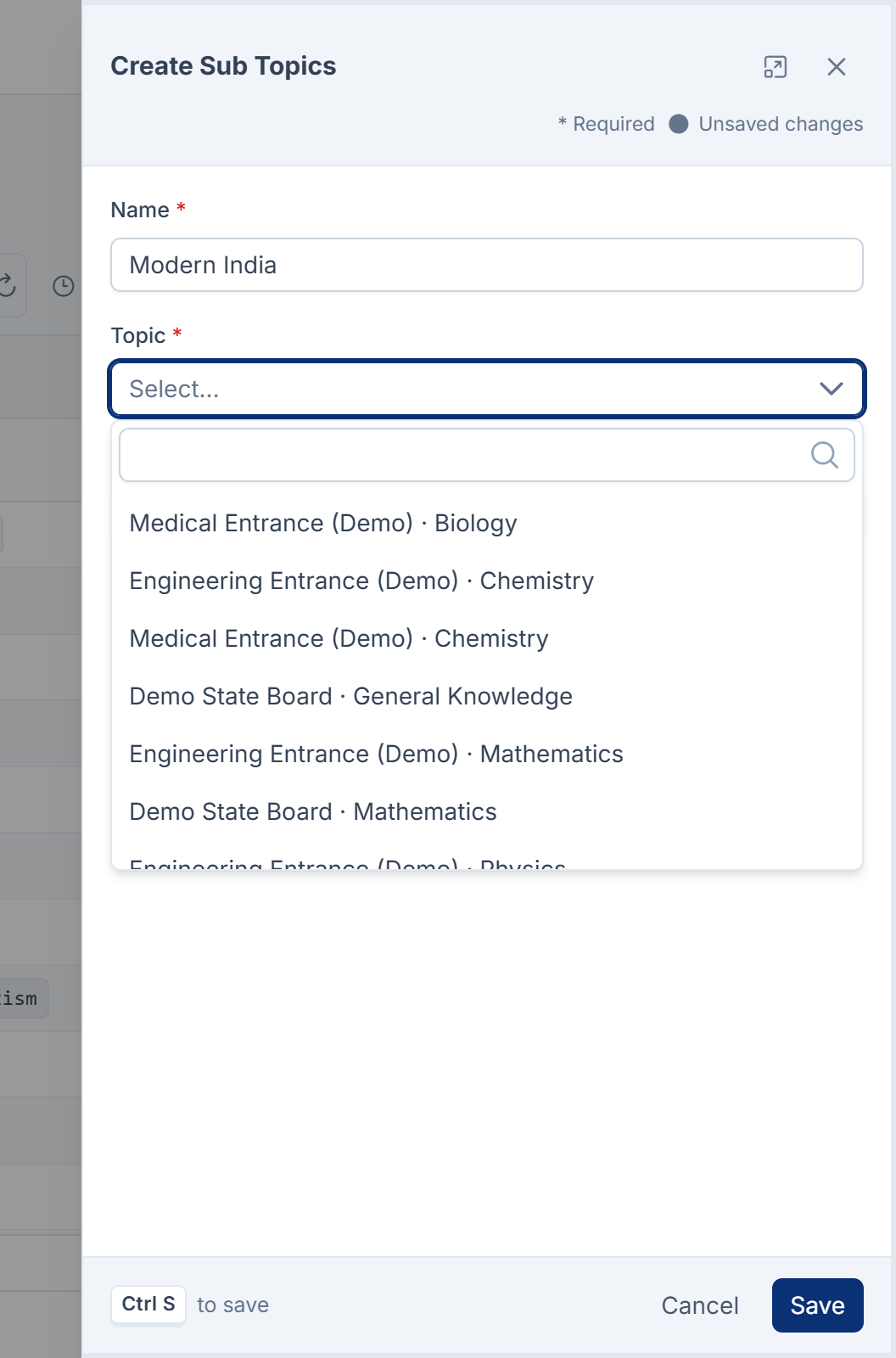
Open Question Bank › Sub Topics and select New Sub Topics.
-
Enter the Name, for example
Modern India. A name can be used once per topic. -
Choose the Topic. The list shows each topic with its board.
-
Leave Slug empty to have it made from the name.
-
Select Save.
You see Sub Topic name Created Successfully!
Add an exam
An exam is one paper, such as one year's prelims. Questions you write or import are attached to it.
-
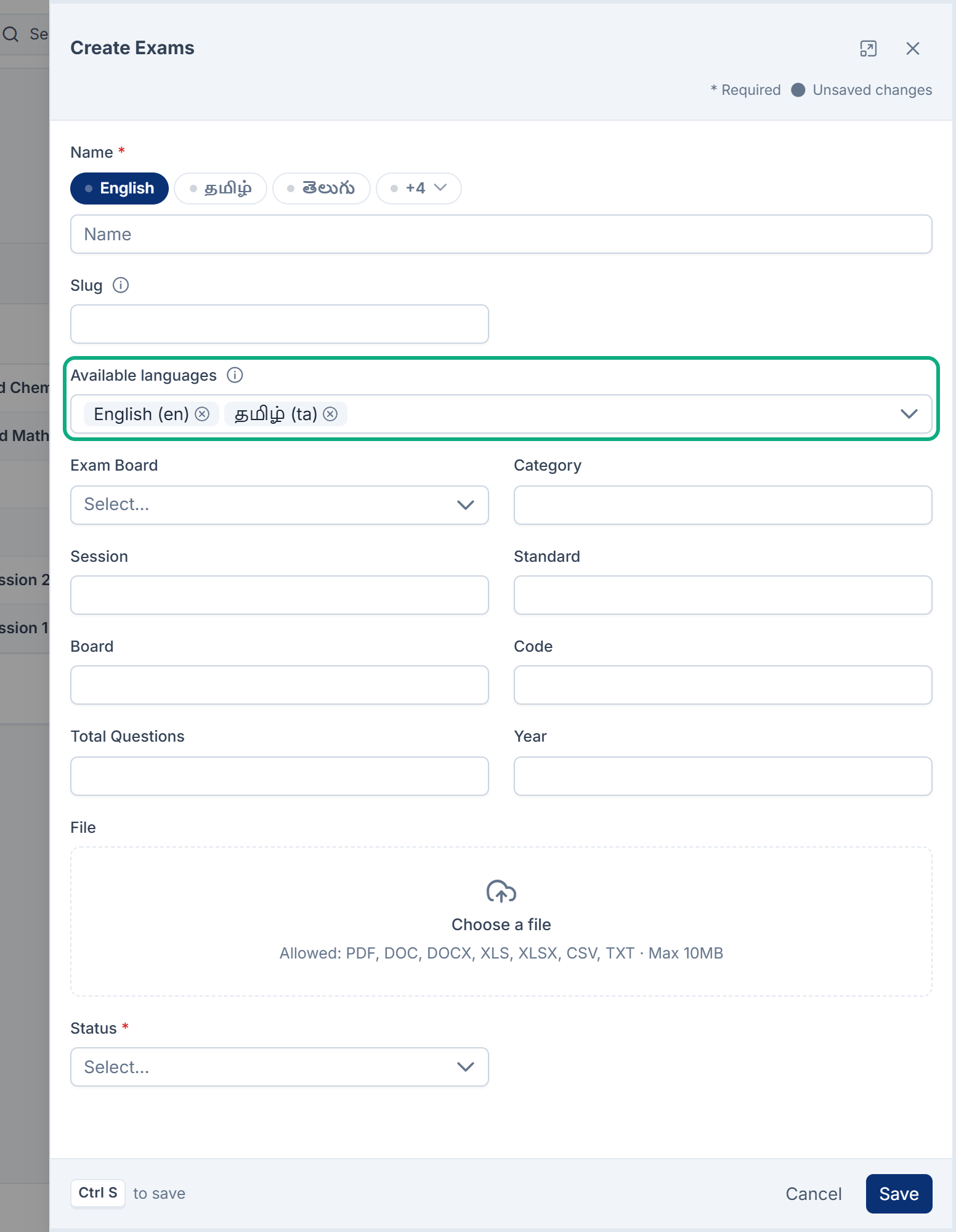
Open Question Bank › Exams and select New Exams.
-
Enter the Name. You can enter it in each language with the language switch on the field.
-
Leave Slug empty to have it made from the name. It can't be changed once the exam is created, because imported question papers are matched to an exam by it.
-
In Available languages, choose the languages this paper is published in, such as English and Tamil. Leave it empty to offer every language your Laramin runs.
-
Choose the Exam Board.
-
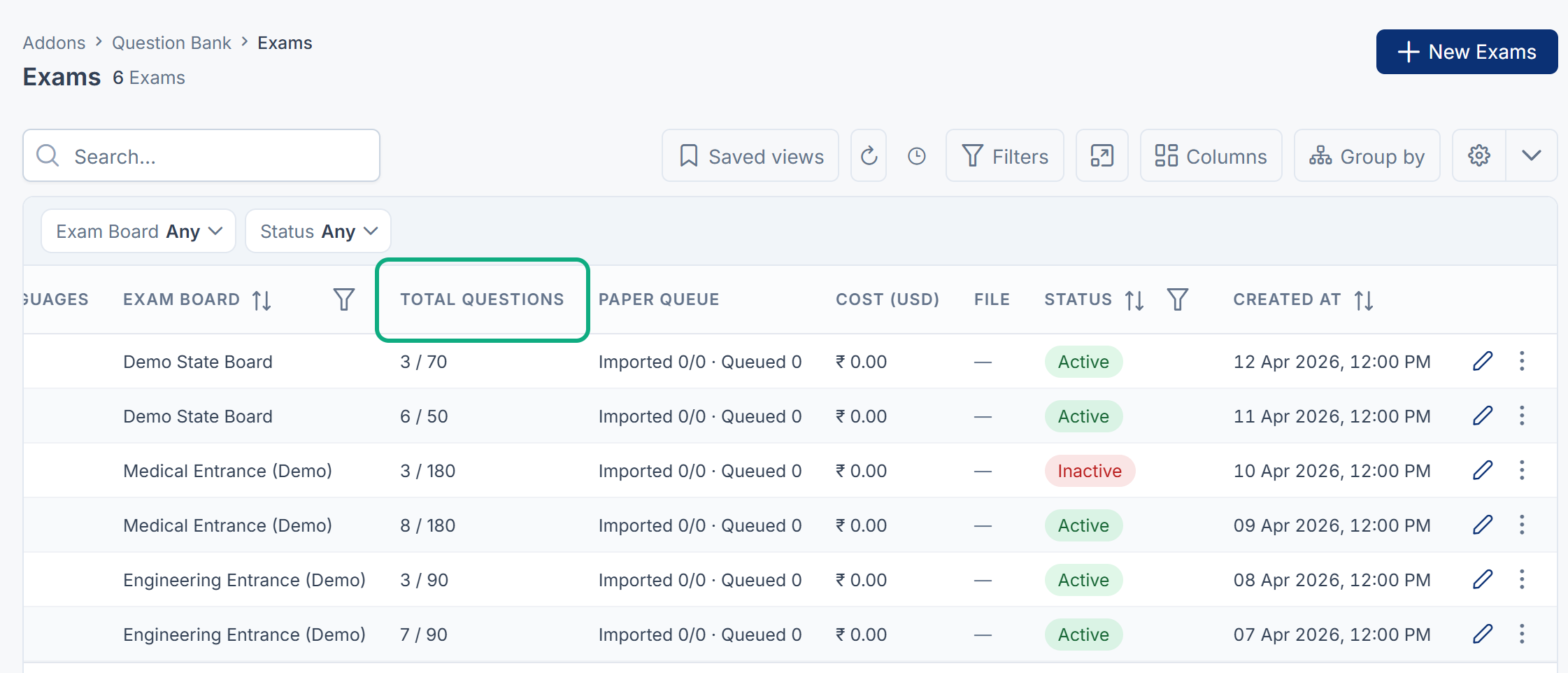
Optional: fill in Category, Session, Standard, Board, Code, Total Questions and Year (four digits). These describe the paper. Total Questions is the number the paper should have: the list shows it against the number of questions you've added, such as
42 / 100. -
Optional: in File, upload the paper itself as a document, such as a PDF.
-
Set Status to Active.
-
Select Save.
You see Exams name Created Successfully!
How Available languages affects questions
The question builder shows a language tab only for the exam's languages. If you later remove a language from an exam, questions that already have text in it keep that text, but no one can add that language to a question of this exam until you add it back. Trying shows This exam is not published in language. Add the language to the exam first, or remove that translation.
Delete and restore
- Delete moves a record to the trash. Its questions keep their filing, and you can restore it from the list's Trashed view.
- Delete forever removes it for good.
- A topic or sub topic that still has questions (or, for a topic, sub topics) filed under it can't be deleted forever, trashed ones included. You see Topic name still has questions or sub topics filed under it. Move them first, or delete it without removing it permanently. Use Set Topic on the Questions list to move them. See Write a question in the question builder.
- An exam board or exam can be deleted forever while topics, exams or questions still point to it, with no warning. Those then show a blank board or exam, already while it's in the trash. Move them first.
For the Trashed view and acting on several records at once, see Delete, restore and act on records in bulk.
What happens next
Thanks. That helps us decide what to write next.
Thanks for telling us what was missing.
You already answered for this article today. Thanks.
We got a lot of answers from your network just now. Try again in a few minutes.
We couldn't send that. Check your connection and try again.
Links in this article
Printed from help.bsscn.com. The online article may have changed since.