Show content to an audience
Create an audience, such as iOS users or people on app version 2.0 and newer, from rules on the platform, version, country, role and more. Then use it to choose who sees an onboarding flow, a menu item or a dashboard.
- Applies to
- Core Mobile 2.0 and later
- Who can do this
- Platform owner
- Permission
feature.cm. audience. create - Where
- Core Mobile › Audiences (Platform Administration)
On this page
An audience is a reusable group of app users, defined by rules. You pick it in the Audience field of an onboarding flow, a menu item or an app dashboard, and only apps that match see that item.
For a simple case, you may not need one: those items also have their own Platform, Minimum version and Maximum version fields.
Before you start
- You need Create Audience (
feature.), and Edit Audience (cm. audience. create feature.) to change one.cm. audience.edit - Know what the app sends. Rules can only use what the app tells your Laramin, or what your Laramin knows about a signed-in person. See the table of attributes below.
What a rule can check
| Attribute | Where the value comes from |
|---|---|
platform | The app: ios, android or web. |
app_version | The app's version, such as 2.1.0. Compared as a version number. |
country | The app, if it sends a country. |
device_class | The app, if it sends a kind of device, such as tablet. |
locale | The language your Laramin answers in. |
role | The signed-in person's roles, by name. Empty when nobody is signed in. |
permission | The signed-in person's permissions, by key. |
tenant | The signed-in person's business, where your Laramin uses one. |
date_window | The current date and time. |
subscription, feature_flag, cohort | Core Mobile 2.1.0 offers these, but never gives them a value, so a rule on them never matches. |
Roles and permissions are the ones a person holds everywhere, not ones held only inside one team.
| Operator | Matches when the value… |
|---|---|
eq, neq | equals, or doesn't equal, the rule's value. |
in, nin | is, or isn't, in a list such as ["ios",. For roles and permissions, when the person holds any of them. |
gte, lte | is at least, or at most, the rule's value. |
between | is between two values, given as a list: ["2.. |
exists | has any value at all. |
Create an audience
-
In the Platform Administration sidebar, select Core Mobile › Audiences.
-
Select Create.
-
Enter a Name, such as
Android, version 2 and newer, and optionally a Description. A key is made from the name when you save. -
Under Rules, add one row for how the rules combine, then three rows for each rule. Select Add row for each:
Key path Type Value opString all(every rule must match),any(one is enough) ornone(no rule may match)rules.0.attrString platformrules.0.opString eqrules.0.valueString androidrules.1.attrString app_versionrules.1.opString gterules.1.valueString 2.0.0Number the rules from
0. For a list, choose JSON as the type and enter it in square brackets, such as["ios",. An audience can have up to 50 rules."android"] -
Turn Status on.
-
Select Save.
You see, for example, 'Audience "Android, version 2 and newer" saved.' An audience with no rules matches everyone.
If a rule names an attribute or operator that doesn't exist, you see, for example, "Rule row 1 references an unknown attribute." Row 1 is rules.0, row 2 is rules.1, and so on.
Use the audience
On an onboarding flow, a menu item or an app dashboard, choose the audience in Audience and save. See Build an onboarding flow and Set up the app's menus and home dashboard.
Careful: An item whose audience is switched off or deleted is shown to nobody, not to everyone. The example audiences Core Mobile comes with, iOS Users and Modern App Versions, start switched off: turn one on before you use it.
Rules that need a value the app doesn't send fail: for example, a country rule never matches an app that doesn't send a country, and a role rule never matches before sign-in.
Mobile Experience Rules
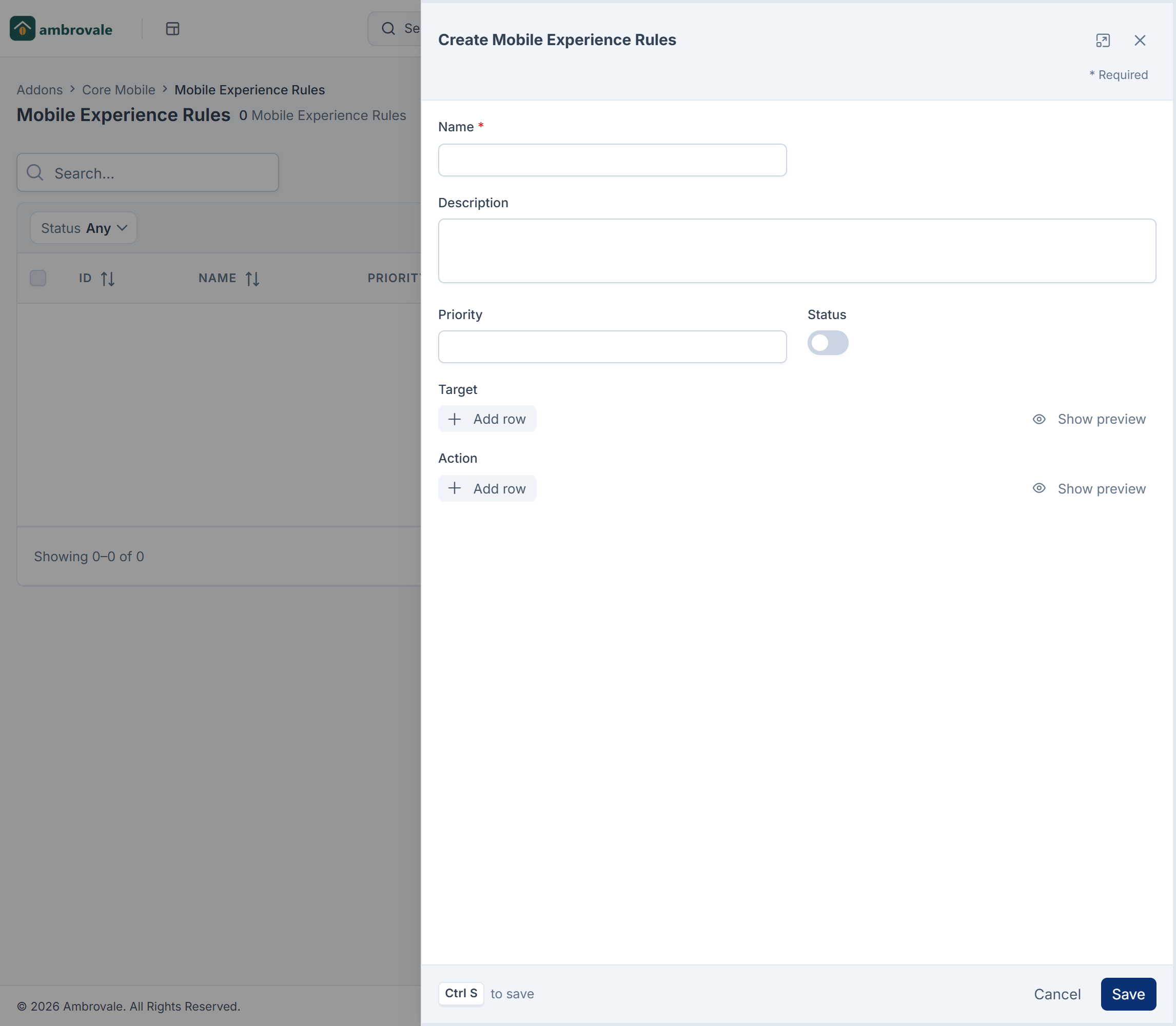
Core Mobile › Mobile Experience Rules stores rules with a Name, Priority, Target and Action, for a future rules engine. Core Mobile 2.1.0 doesn't act on them, although the screen doesn't say so. Use audiences instead.
Thanks. That helps us decide what to write next.
Thanks for telling us what was missing.
You already answered for this article today. Thanks.
We got a lot of answers from your network just now. Try again in a few minutes.
We couldn't send that. Check your connection and try again.
Links in this article
Printed from help.bsscn.com. The online article may have changed since.