The app doesn't show your changes
You changed a setting, theme, onboarding flow, menu or dashboard in Core Mobile, but the mobile app looks the same, or the app can't load its settings at all. Work through the causes in order.
- Applies to
- Core Mobile 2.0 and later
- Who can do this
- Platform owner, Developer
- Where
- Core Mobile (Platform Administration)
On this page
Symptom
One of these:
- You saved a change in Core Mobile, but the app still shows the old value.
- An onboarding flow, menu item or dashboard never appears in the app.
- The app can't load its settings before sign-in.
- The app's language screen offers only English.
Check these, in order
1. The app hasn't asked again yet
Your Laramin sends a change in its very next answer, but the app decides when to ask, usually when it starts.
Fix: Close the app completely and open it again. If it still keeps the old value, ask whoever builds the app how often it refreshes.
2. The app doesn't read that setting
Some sections are saved but never sent: Theme Settings, API Configuration, Push Notifications, Analytics & Monitoring, Offline Experience, Device Capability, and the social links in Contact & Support. The app's theme comes from Core Mobile › Themes. And an app only reacts to keys, tokens and names it was built to read.
Fix: Check the table in Core Mobile configuration settings, and agree key names with the app's developers.
3. The item isn't live
An onboarding flow or dashboard is sent only when all of these are true:
- Status is Published. Core Mobile 2.1.0 never sends one set to Scheduled, even after its Publish at time.
- Active is on.
- Publish at, if set, has passed, and Expire at, if set, hasn't.
- For an onboarding flow, at least one slide is active.
For menus, the menu and the item must both be Active, and so must every parent above the item.
Fix: Correct the item and select Save.
4. Another item wins
Each app gets one onboarding flow and one dashboard: the matching one with the highest Priority. A menu for one platform replaces the all-platforms menu of the same kind. The published examples Core Mobile comes with, Laramin Welcome and Laramin Home, count too.
Fix: Raise your item's Priority, or archive the one that wins.
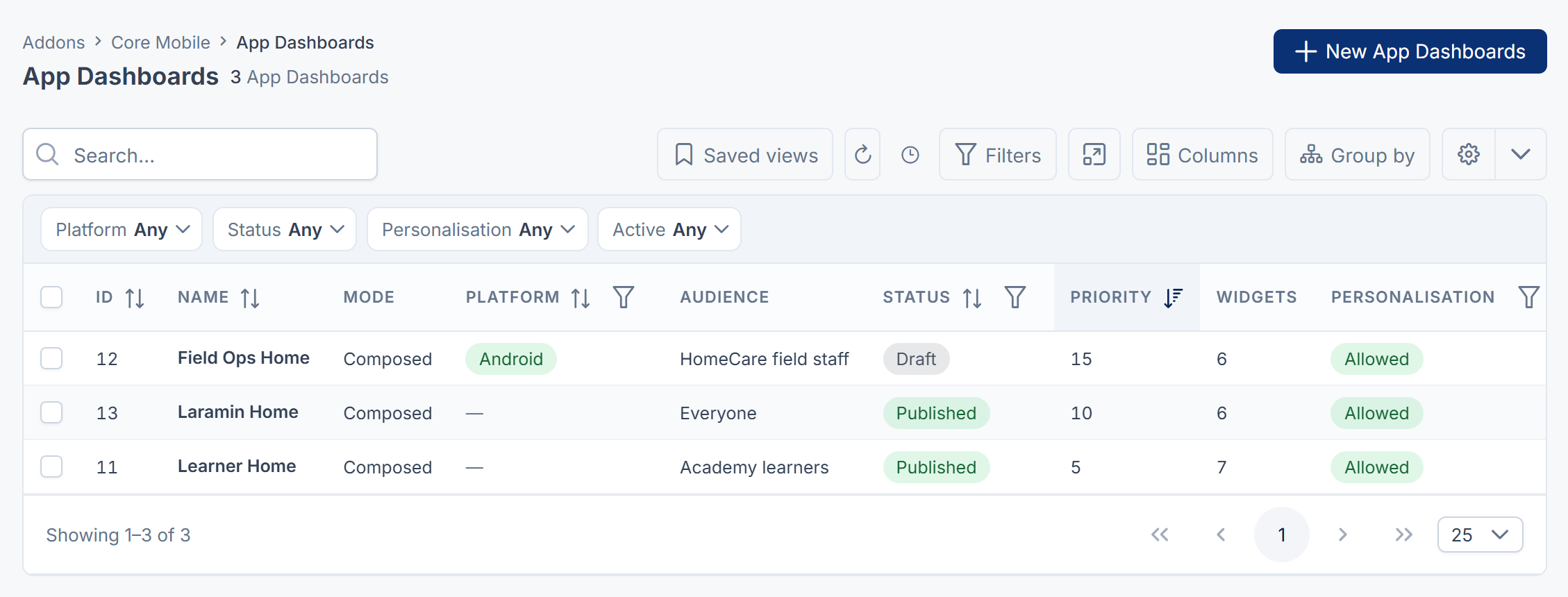
5. The targeting doesn't match
- Platform is set to a different platform.
- A Minimum version or Maximum version is set, and the app doesn't send its version, or its version is outside the range.
- The Audience is switched off or deleted. The item is then shown to nobody. The example audiences start switched off.
- An audience rule needs something the app doesn't send, such as a country, or a signed-in person for a
rolerule. Rules onsubscription,feature_flagorcohortnever match in Core Mobile 2.1.0.
Fix: Remove the limit, turn the audience on, or ask the app's developers to send the missing value. See Show content to an audience.
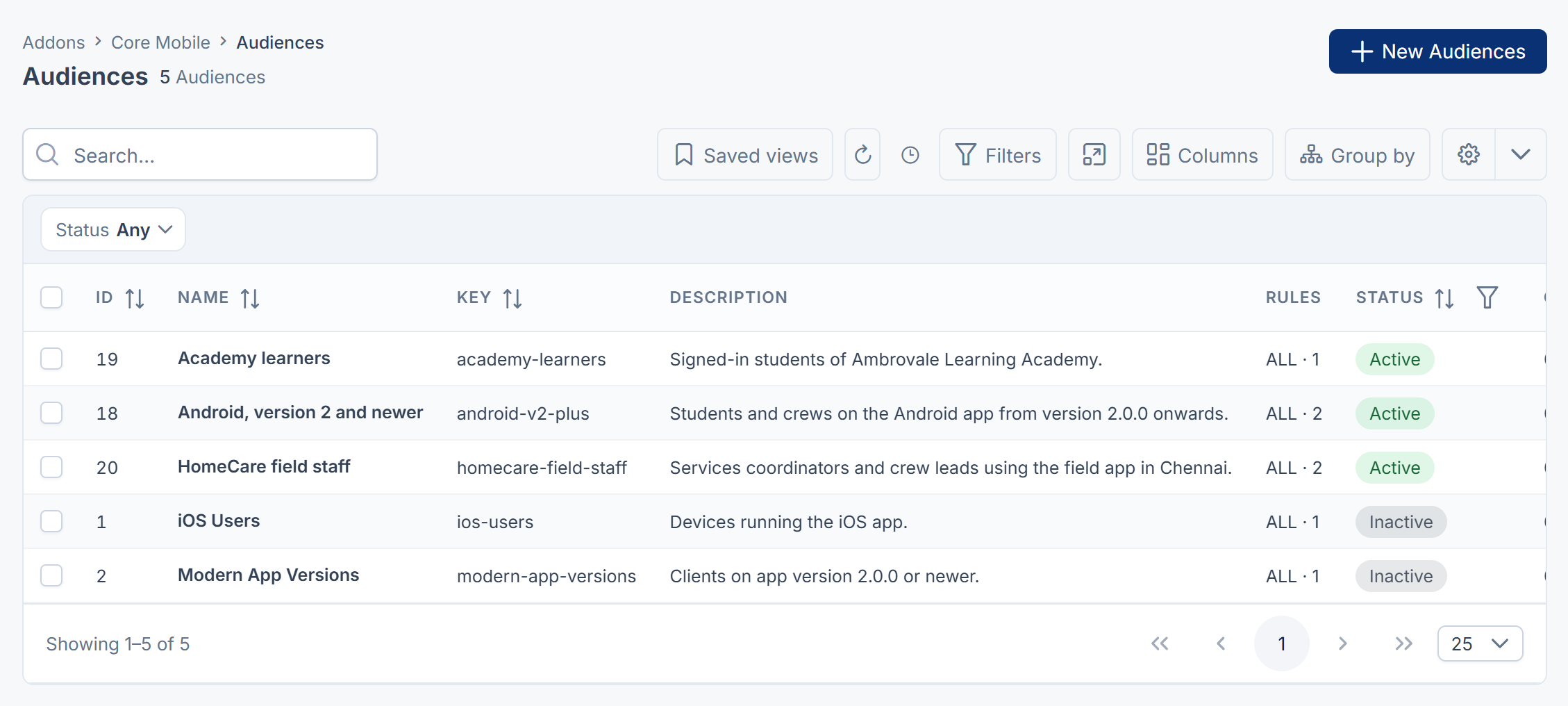
6. A value disappeared instead of changing
Switching a remote configuration value off, or deleting it or a feature flag, removes it from what the app receives. The app then uses its own built-in default.
Fix: To turn a feature off, edit the flag and turn Enabled off. To change a value, edit it rather than deleting it.
7. The dashboard shows no widgets or no figures
- If the dashboard has a Custom component, the app shows that screen and ignores the widgets.
- A widget whose Type is Custom without a Custom component isn't sent.
- Core Mobile 2.1.0 sends no widget figures at all, so every widget shows its empty state.
8. The app can't load its settings before sign-in
The app is missing the platform API key, or the key changed. Requests without a valid key get a 401 answer until someone signs in.
A common cause is Generate new key in API Security. Saving with it selected replaces the key with a random one that's never shown: you only see API Security updated successfully. So nobody can give the new key to the app, and every app and program that used the old one is cut off straight away. The key is never displayed, so you can't read the current one either.
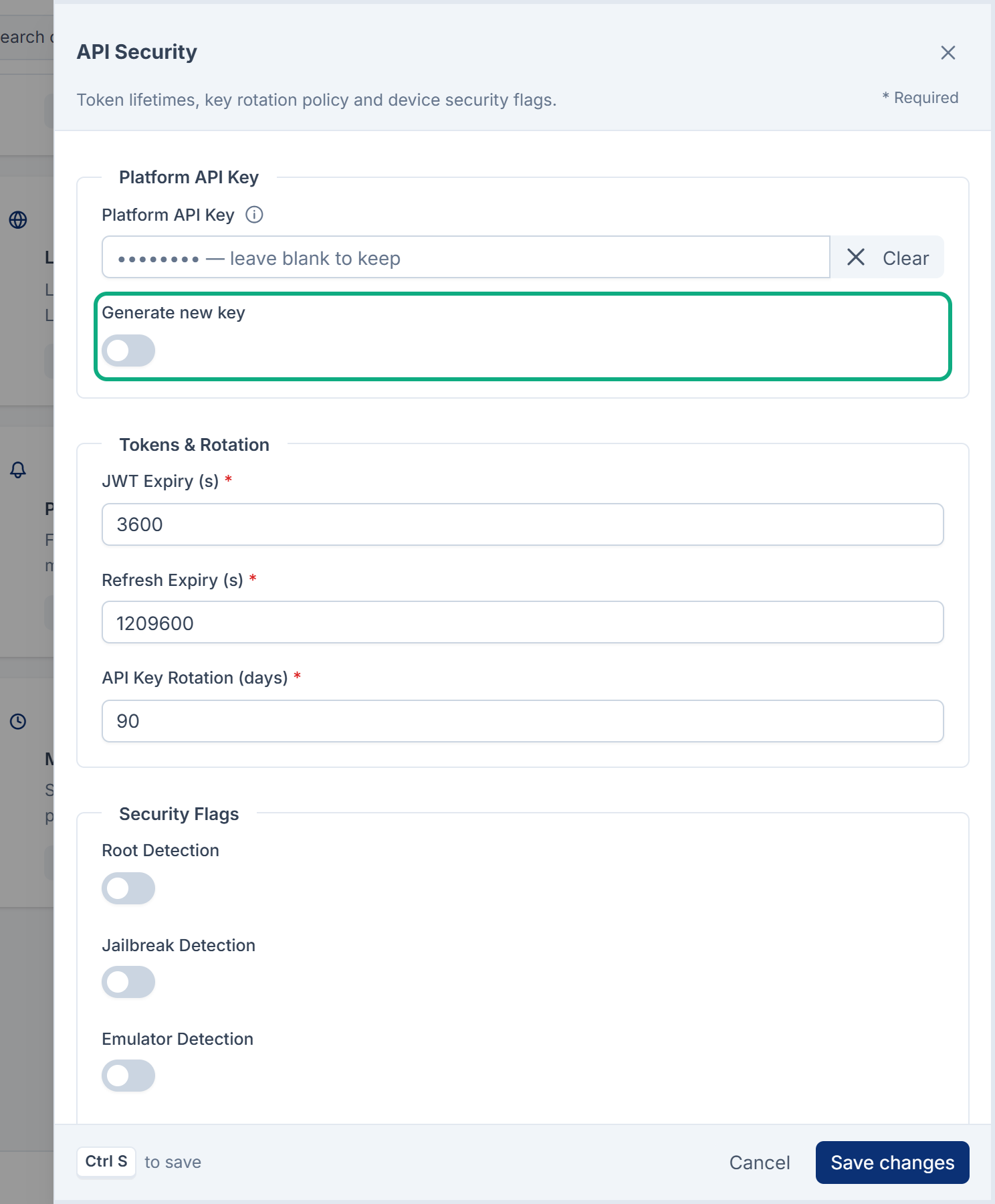
Fix: In API Security, type your own long, random key of at least 24 characters in Platform API Key, keep a copy, and select Save changes. Leave Generate new key off. Then share the key with the app's developers safely. See Core Mobile configuration settings.
9. Your Laramin is in maintenance mode
Your Laramin's own maintenance mode closes the API too, so the app gets a 503 answer with the code MAINTENANCE, which an app can use to show its maintenance screen. Core Mobile's Maintenance Management doesn't do that: it only tells the app.
Fix: See Turn on maintenance mode. If the app shows a maintenance screen you didn't expect, see The app shows a maintenance screen.
10. You used Mobile Experience Rules
Rules on Core Mobile › Mobile Experience Rules are stored for a future engine. Core Mobile 2.1.0 doesn't act on them.
Fix: Use an audience instead.
11. The app offers only English
If your Laramin had Core Mobile before version 2.1.0, Supported Languages and Active Languages in Localization may still hold only English. The app then offers English only, whatever languages your Laramin publishes.
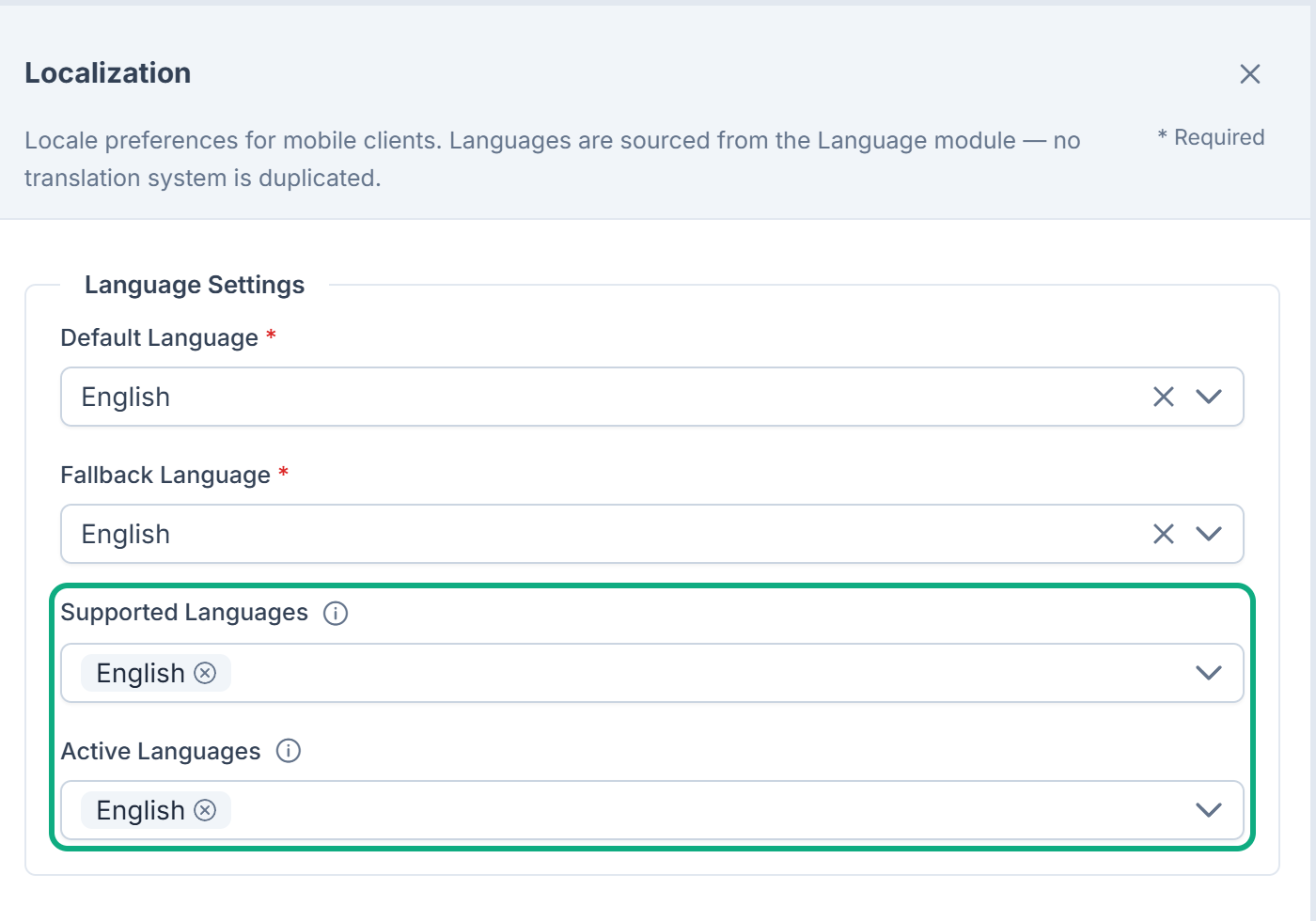
Fix: In Core Mobile › Dashboard, select Configure on Localization, clear both lists, and select Save changes. Empty lists offer every language your Laramin publishes. Or ask whoever runs your server to run:
Couldn't copy. Select the code and press Ctrl+C (⌘+C on a Mac).
php artisan coremobile:reset-seeded-languages --applyIt clears a list only if it holds English alone. Without --apply, it only reports what it would change. See Core Mobile configuration settings.
Not sure which add-on serves the change you made? See Your change doesn't show on your website or app.
Still not working?
Raise a ticket from Support Center in your Laramin app. Include this page's link, what you changed and when, the app's platform and version, and whether someone was signed in. Never send your platform API key or Firebase key.
Thanks. That helps us decide what to write next.
Thanks for telling us what was missing.
You already answered for this article today. Thanks.
We got a lot of answers from your network just now. Try again in a few minutes.
We couldn't send that. Check your connection and try again.
Links in this article
Printed from help.bsscn.com. The online article may have changed since.