Make a backup now and download it
Back up your Laramin's database, uploaded files or both on demand, then download the archive to keep a copy of your own.
- Applies to
- Backup 1.1 and later
- Who can do this
- Platform owner
- Permission
feature.backup. backup. create - Where
- Backups › Backups History
On this page
Before you start
- You need Create Backup (
feature.). To download, you also need View Backup (backup. backup. create feature.). Super admins have both.backup. backup.view - A backup you start by hand runs as a background job. Make sure the queue worker is running. Queue & Worker Status on Extra Utilities shows the jobs waiting to run.
- Know your own sign-in password. Laramin asks for it before it starts a backup.
Choose what to back up
| Backup Scope | What the archive holds |
|---|---|
| Full | The database and the uploaded files. |
| Database | The database only. |
| Files | The uploaded files only: the public/uploads and storage/ folders. |
| Incremental | Only the uploaded files that are new or changed since the last incremental backup, plus a list of files that were deleted. |
A backup never holds Laramin's own program files, its add-ons or the server's environment file. A few working tables are also left out of every database backup: the background job queue, the cache, sign-in sessions, and the Backup module's own history.
Steps
-
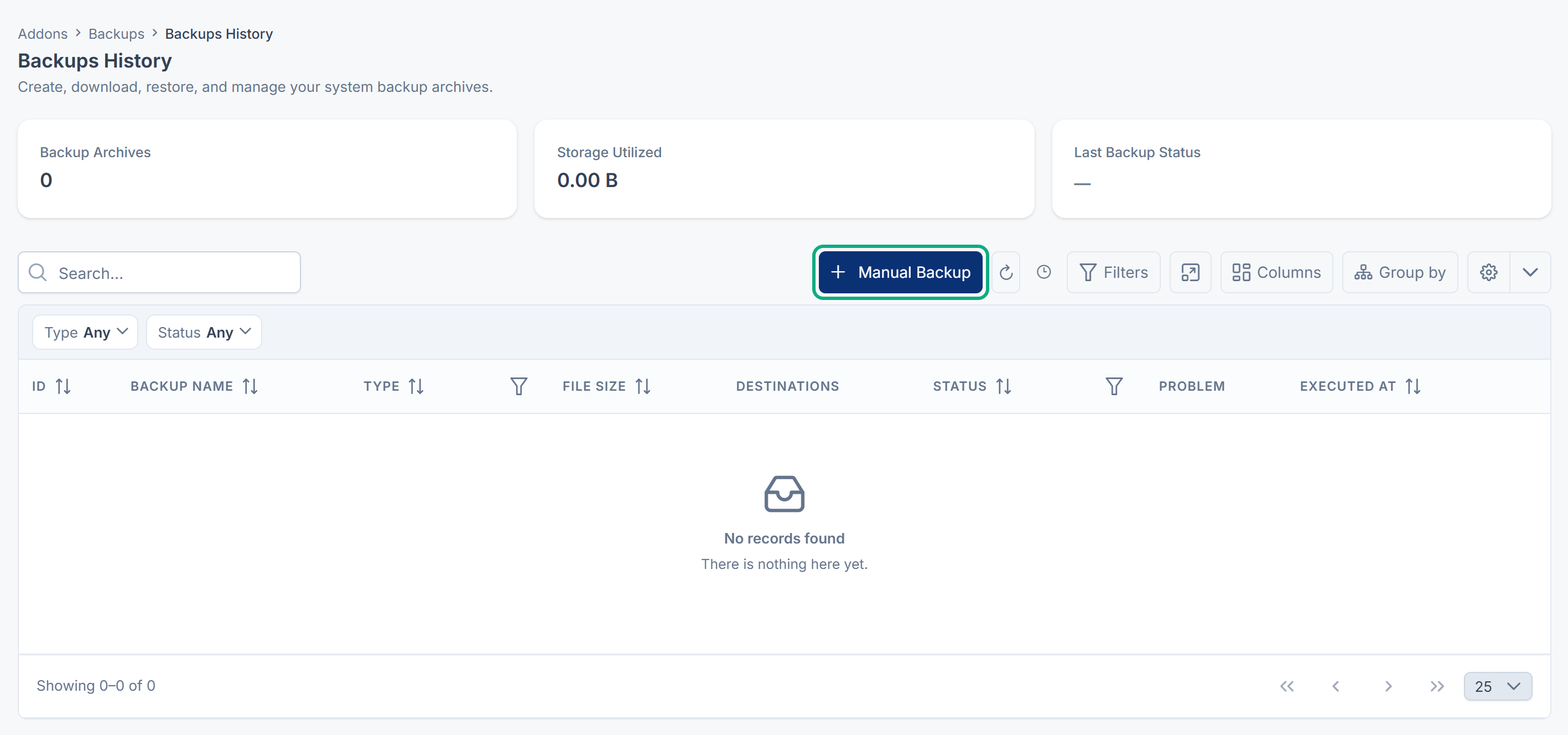
In the sidebar, open Backups › Backups History.
-
Select Manual Backup.
-
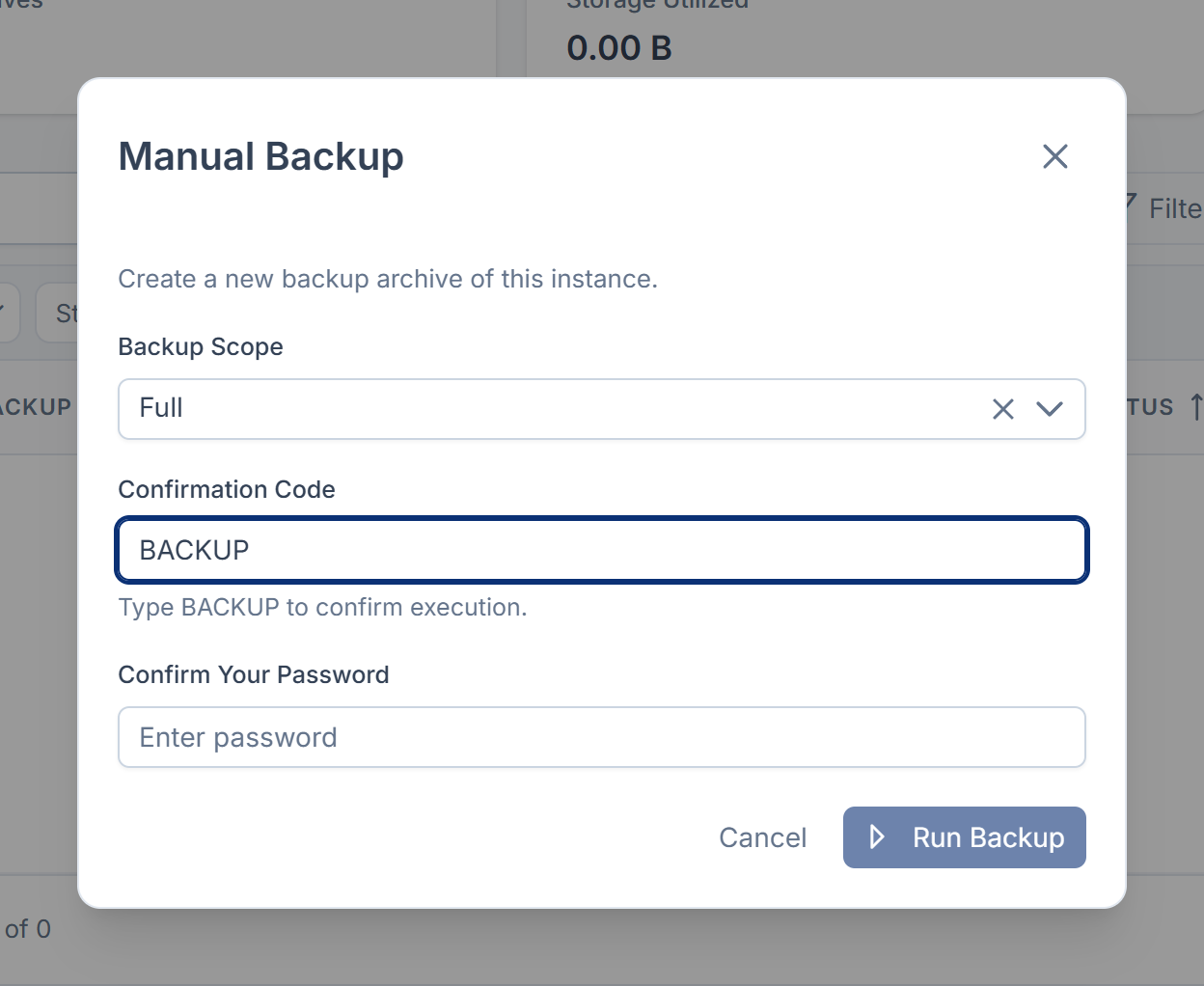
In Backup Scope, choose Full, Database, Files or Incremental.
-
In Confirmation Code, type
BACKUPin capital letters. -
In Confirm Your Password, enter the password you sign in with.
-
Select Run Backup.
You see Backup process initiated in the background successfully! A new row appears in the list with the status Processing. The list checks for progress every few seconds. When the backup finishes, you see a message such as Backup “backup-2026-11-07-10-30-00-a1b2c.zip” completed., and the status changes to Completed.
If a copy to your cloud storage or server failed, the status changes to Partial instead. The archive is safe on your Laramin's server, and the Problem column says which copy failed and why. You also get a notification, Backup saved locally only. See A backup or restore is stuck or failed.
If the code or the password is wrong, the dialog shows Password / Confirmation code not matched with your inputs. Nothing is started.
Download the archive
-
In the backup's row, open the row actions menu.
-
Select Download.
Your browser saves the .zip file. Download only appears for a backup whose status is Completed or Partial.
Laramin always keeps a copy of each backup on its own server, and downloads that copy. If you set an Archive Password in Backup settings, you need that password to open the downloaded file.
What happens next
- The cards above the list show the number of Backup Archives, the Storage Utilized and the Last Backup Status.
- The Destinations column shows where each archive is stored: Local, and each cloud storage or server it was copied to. A destination whose copy failed isn't listed.
- The Problem column says why a backup failed, or which copy failed for a Partial one.
- Old backups are deleted by the retention policy after each backup that ends Completed or Partial. See Backup settings.
- To stop making backups by hand, see Schedule backups to cloud storage.
- If the status stays Processing, see A backup or restore is stuck or failed.
Delete a backup
-
In the backup's row, open the row actions menu and select Delete.
-
Type
DELETEto confirm, then select Delete.
Careful: Deleting a backup removes its archive from every destination it was copied to, not only from the list. You can't undo it.
Thanks. That helps us decide what to write next.
Thanks for telling us what was missing.
You already answered for this article today. Thanks.
We got a lot of answers from your network just now. Try again in a few minutes.
We couldn't send that. Check your connection and try again.
Links in this article
Printed from help.bsscn.com. The online article may have changed since.