Upload photos to a property's gallery
Add the featured image and up to 20 more photos, videos, documents and links to a property, put them in the order buyers should see them, and know which ones your website shows.
Why this step
Buyers see the Featured Image: The cover photo that leads the listing. first. The dashboard and Completeness only count the featured image, so set it even when the gallery is full.
Today you only need:
- Applies to
- Property CRM 5.0 and later
- Who can do this
- Team member
- Permission
feature.pcrm. property.edit - Where
- Property CRM › Properties
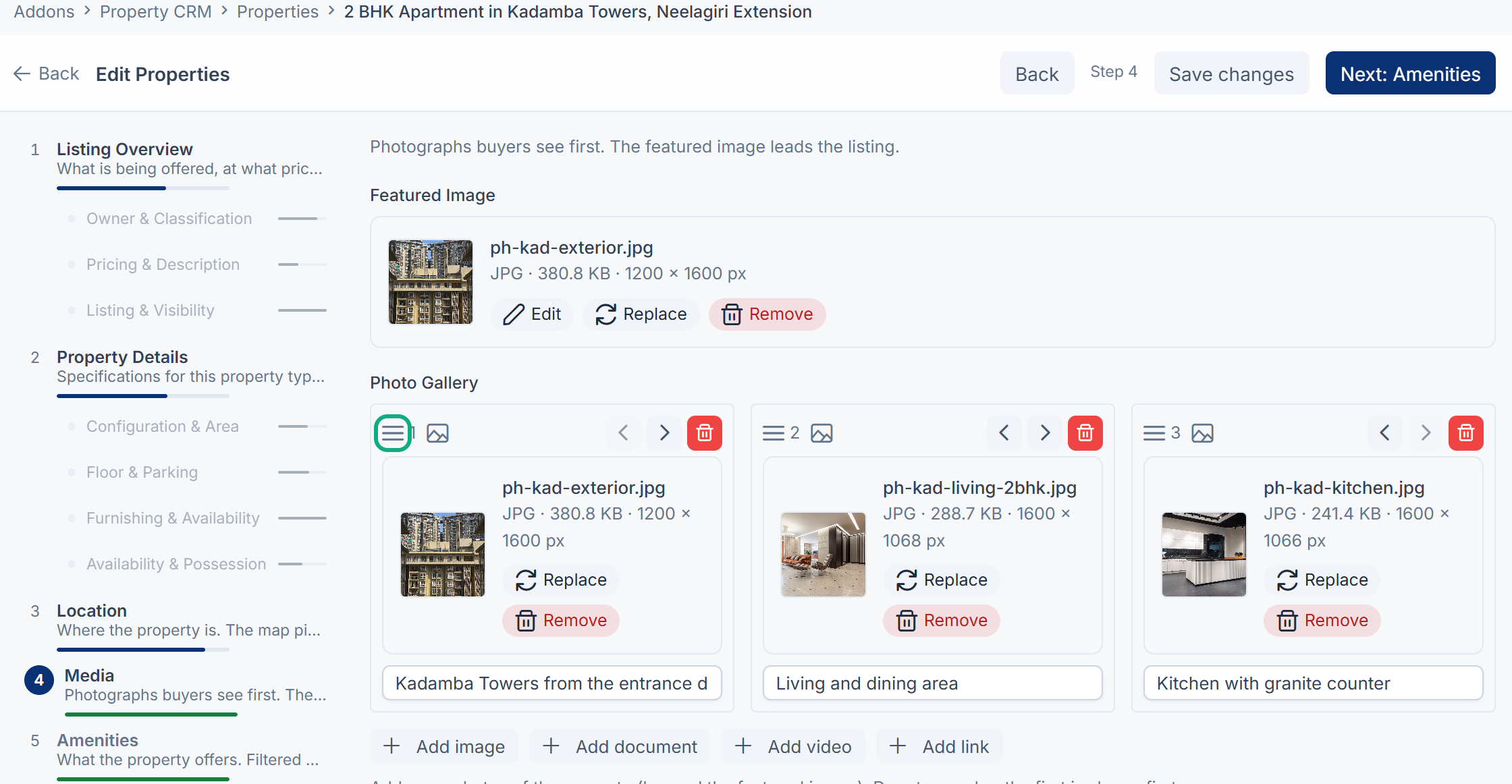
Each property has a Featured Image, the cover that leads the listing, and a Photo Gallery for everything else.
Before you start
- To change a property you need
feature.. Property CRM Admin, Manager and Agent have it. When you're adding a new property,pcrm. property.edit feature.is enough.pcrm. property. create - Work in your business's workspace, not All Workspaces. See Switch workspace.
- Images can be jpg, jpeg, png, gif, svg or webp, up to 5 MB each. Documents can be pdf, doc, docx, xls, xlsx, csv or txt, up to 10 MB. Your Laramin's upload settings may allow other types and sizes. See File upload settings.
Steps
-
In the Property CRM sidebar, open Properties, and select the property.
-
Select Edit Property.
-
In the steps down the side of the form, select Media.
-
Under Featured Image, upload the photo buyers should see first.
-
Under Photo Gallery, select Add image, then choose or drop the photo. Repeat for each photo.
-
Optional: type a Caption (optional) under a photo.
-
To change the order, drag a card by its handle, or use Move earlier and Move later. Buyers see the gallery in this order.
-
Select Save.
You can add more than photos to the gallery:
| Button | What it adds |
|---|---|
| Add image | A photo. |
| Add video | A walk-through video. Paste a YouTube or Vimeo URL. Any other address shows Enter a valid YouTube or Vimeo URL. |
| Add document | A file, such as a floor plan or an approval letter. |
| Add link | A web address, with an optional Label (optional), such as a virtual tour. |
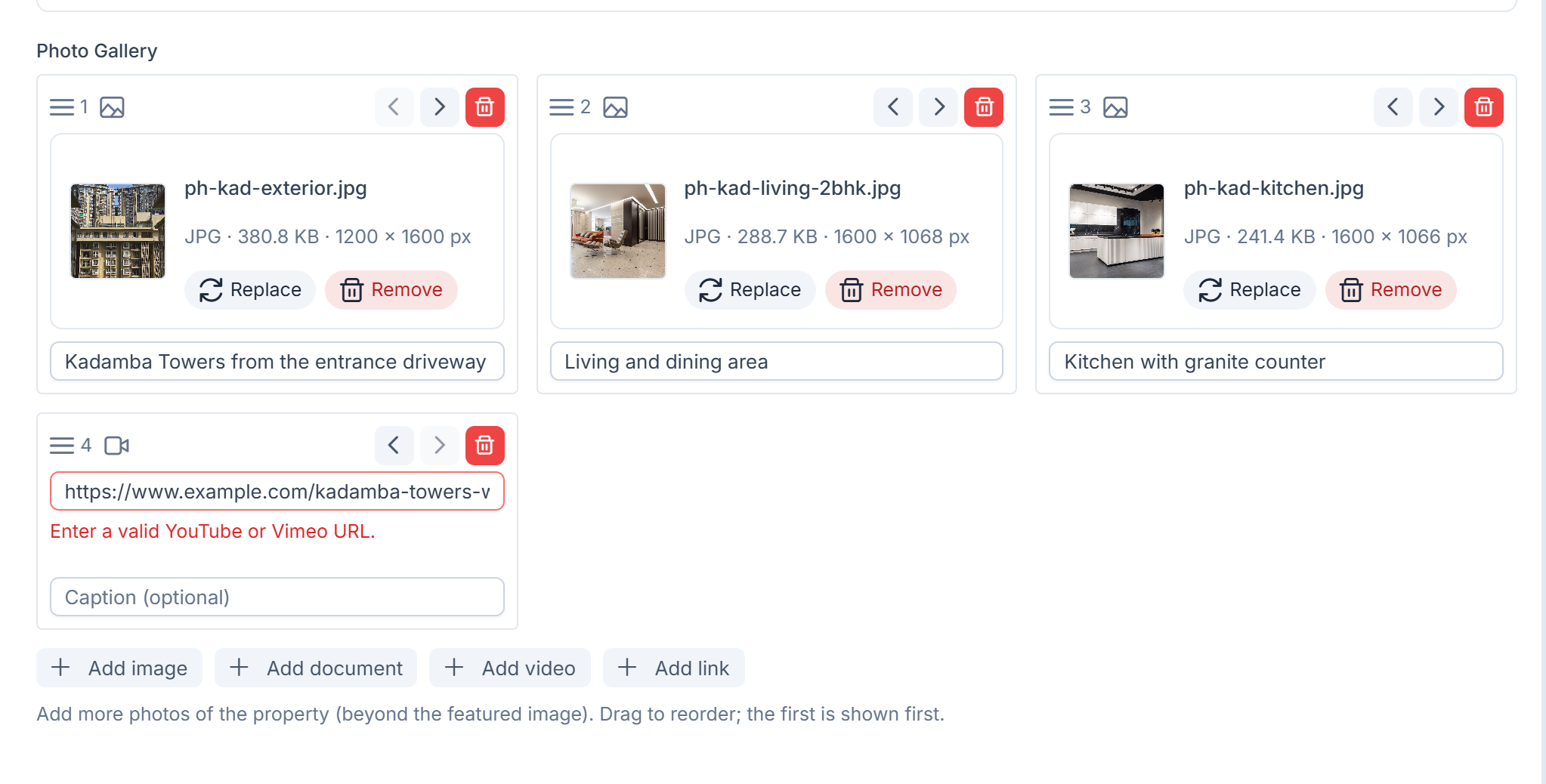
The gallery holds up to 20 items, not counting the featured image. To take one out, select Remove on its card, then Save.
What happens next
The Photo Gallery shows on the property's page, under its location.
If your business has a website that shows your listings, it shows the featured image, and the gallery's photos, videos and links in your order. Documents never leave Laramin: the website doesn't receive them, so title deeds and agreements stay private to your team.
Tip: The dashboard's Inventory card counts available properties Without a photo, and a property's Completeness counts the featured image. Both look only at the featured image, so set one even when the gallery is full.
Links in this article
Printed from help.bsscn.com. The online article may have changed since.