Change, turn off or delete a custom field
Rename a custom field, change its options or rules, hide it from forms for a while, move it to the trash and restore it, or delete it for good. See what happens to the values already saved.
- Applies to
- Custom Fields 2.0 and later
- Who can do this
- Platform owner, Administrator
- Permission
feature.cf. custom_field.edit - Where
- Custom Field › Custom Fields › Manage fields
On this page
Before you start
- To change a field you need Edit Custom Field (
feature.). To delete one, Delete Custom Field (cf. custom_field.edit feature.). To restore it, Restore Custom Field (cf. custom_field. delete feature.), and to delete it for good, Remove Custom Field (cf. custom_field. restore feature.).cf. custom_field. remove - A field's Name and Field Type can't be changed. To change them, add a new field and delete the old one. The old values don't move across.
Change a field
-
In the sidebar, open Custom Field › Custom Fields, and select Manage fields on the entity.
-
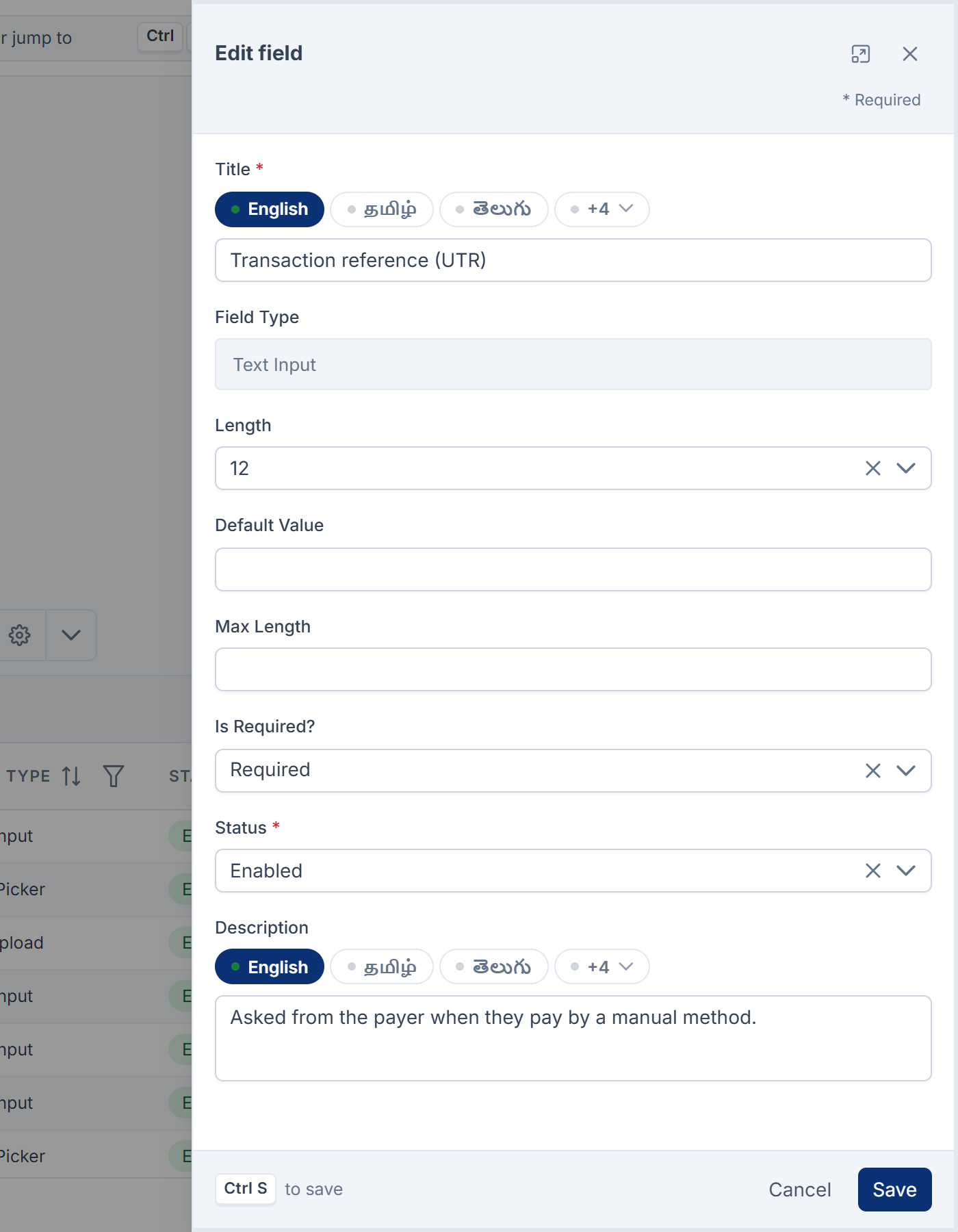
Open the field's row actions menu and select Edit. The Edit field panel opens.
-
Change what you need: the Title, Options, Default Value, Max Length, Is Required? or Description.
-
Select Save.
You see Custom Field followed by the title and Updated Successfully! Forms you open after this show the change.
Careful: Values already saved aren't checked again. If you remove an option, records that chose it keep the old value, and saving them can be refused until someone picks a valid option. The same goes for a field you make Required, or a shorter Max Length.
Turn a field off for a while
- Edit the field.
- Set Status to Disabled.
- Select Save.
The field disappears from forms. The values stay with the records, and show again when you set Status back to Enabled.
Delete a field
-
Open the field's row actions menu and select Delete.
-
In Delete field, confirm Delete the field "…"? It can be restored later.
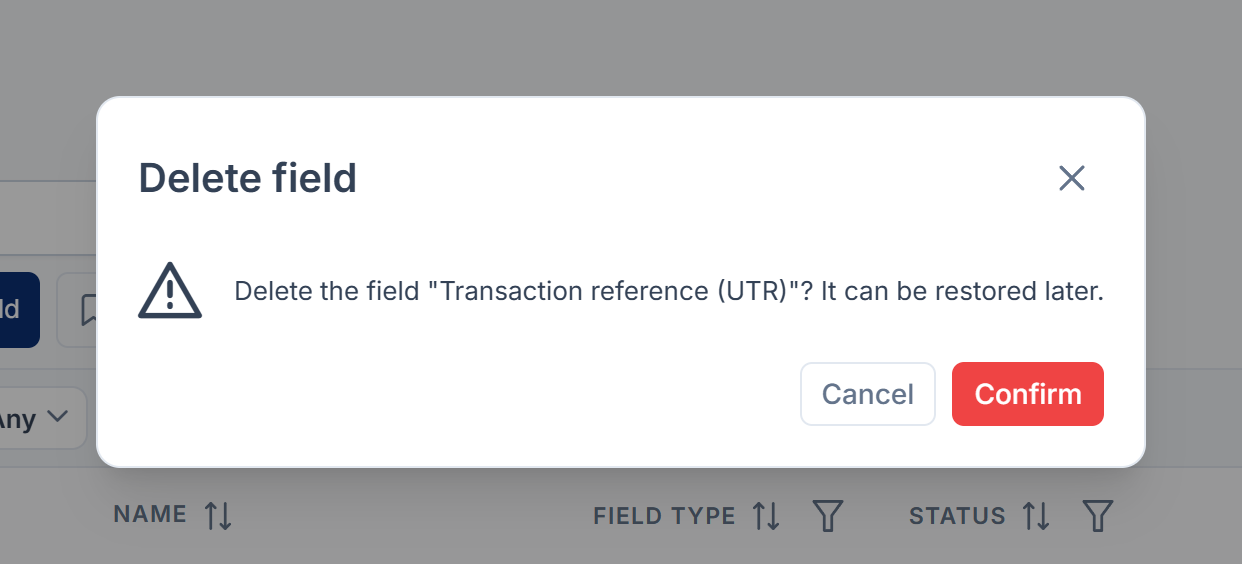
You see Custom Field followed by the title and Deleted Successfully! The field moves to the trash and leaves the form. If it's a group, the fields inside it stay on the form, without the heading. The saved values aren't touched.
Restore or delete a field for good
-
In the field list, open the Trashed view. See Delete, restore and act on records in bulk.
-
On the field's row actions menu, choose one:
- Restore puts the field back where it was, with its values.
- Delete removes it for good. In Permanently delete field, type the field's name where it says Type … to confirm., then confirm.
Danger: Deleting a field for good can't be undone. Deleting a group for good also deletes the fields inside it. The values stay stored on the records but no longer show anywhere. If you later add a field whose name is the same, it shows those old values again.
Thanks. That helps us decide what to write next.
Thanks for telling us what was missing.
You already answered for this article today. Thanks.
We got a lot of answers from your network just now. Try again in a few minutes.
We couldn't send that. Check your connection and try again.
Links in this article
Printed from help.bsscn.com. The online article may have changed since.